Getting Started
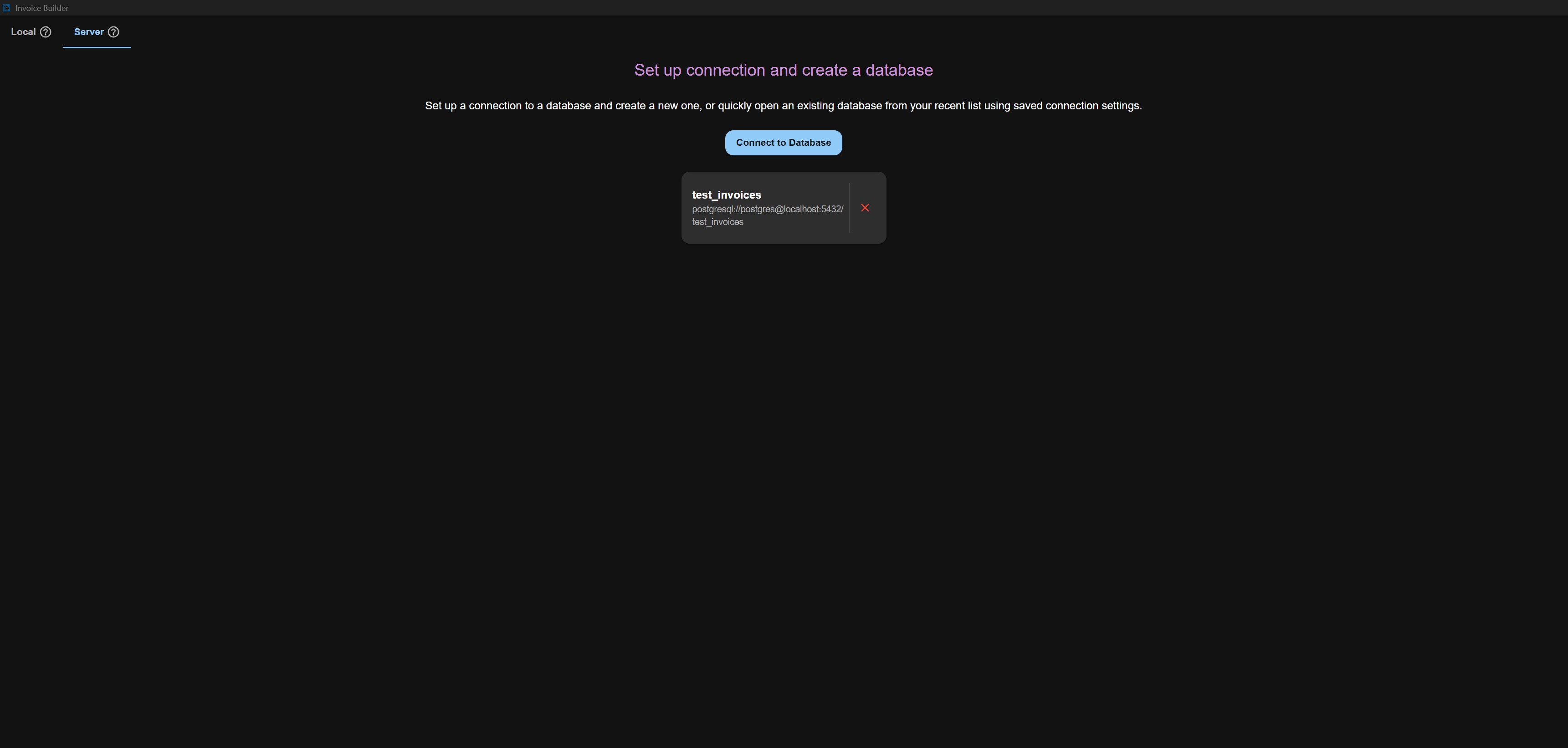
Database creation screen
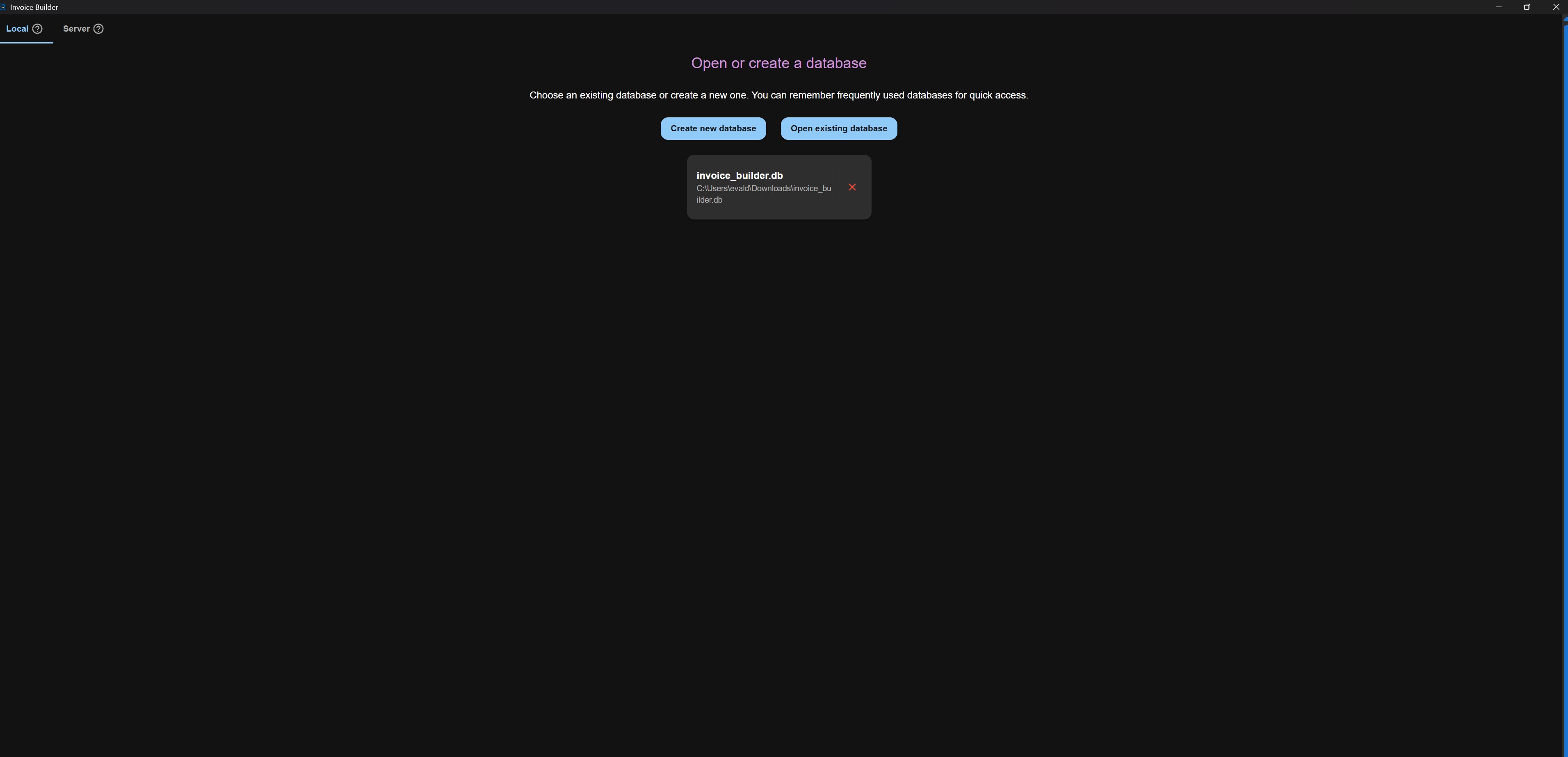
The first screen of the application lets you choose how you want to work with your database. You can either create/open a local database file or connect to a database server.
Local database
Recently opened databases are displayed in a quick access list for faster reopening.
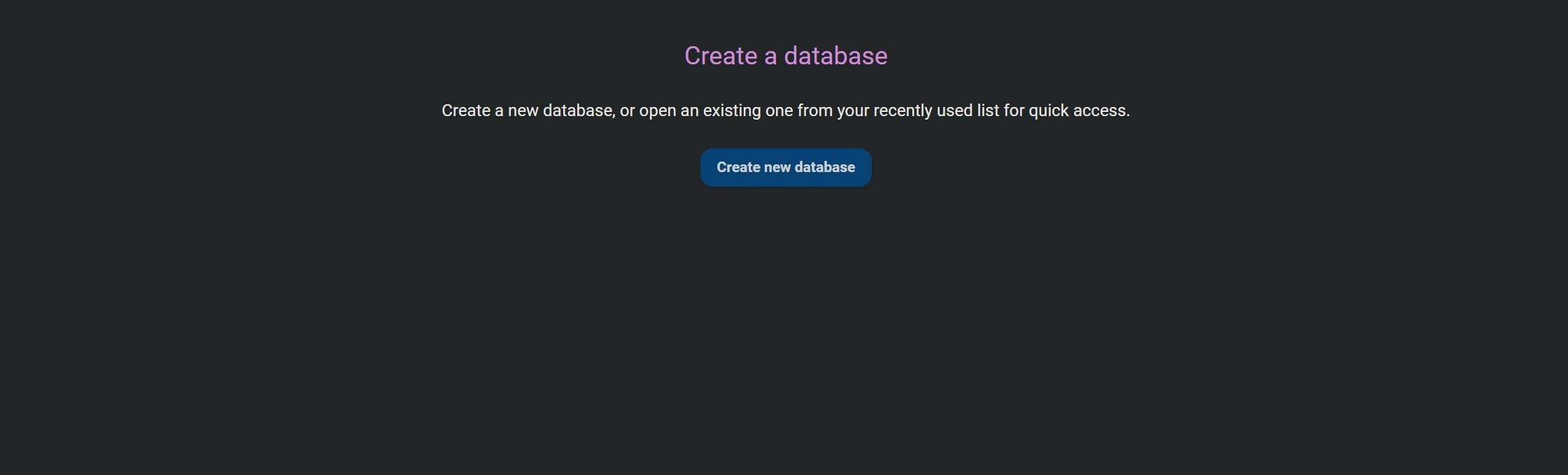
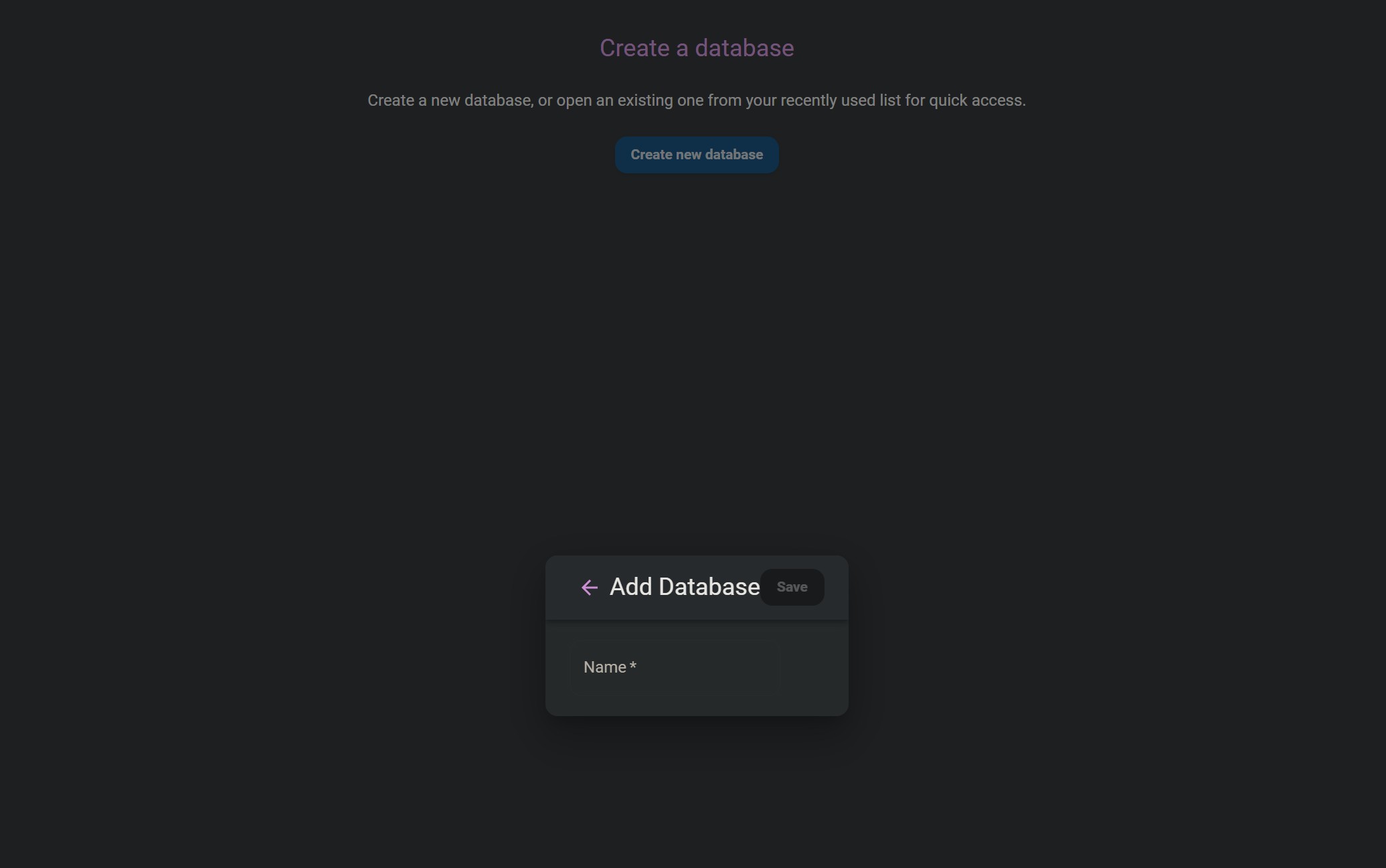
When the application runs in Docker or the web version, databases are created inside a predefined folder. All databases in that folder are automatically listed in Quick Access. To remove a database from the Quick Access list, simply delete it from that folder. During creation, you will be prompted to enter the database name.
Server database
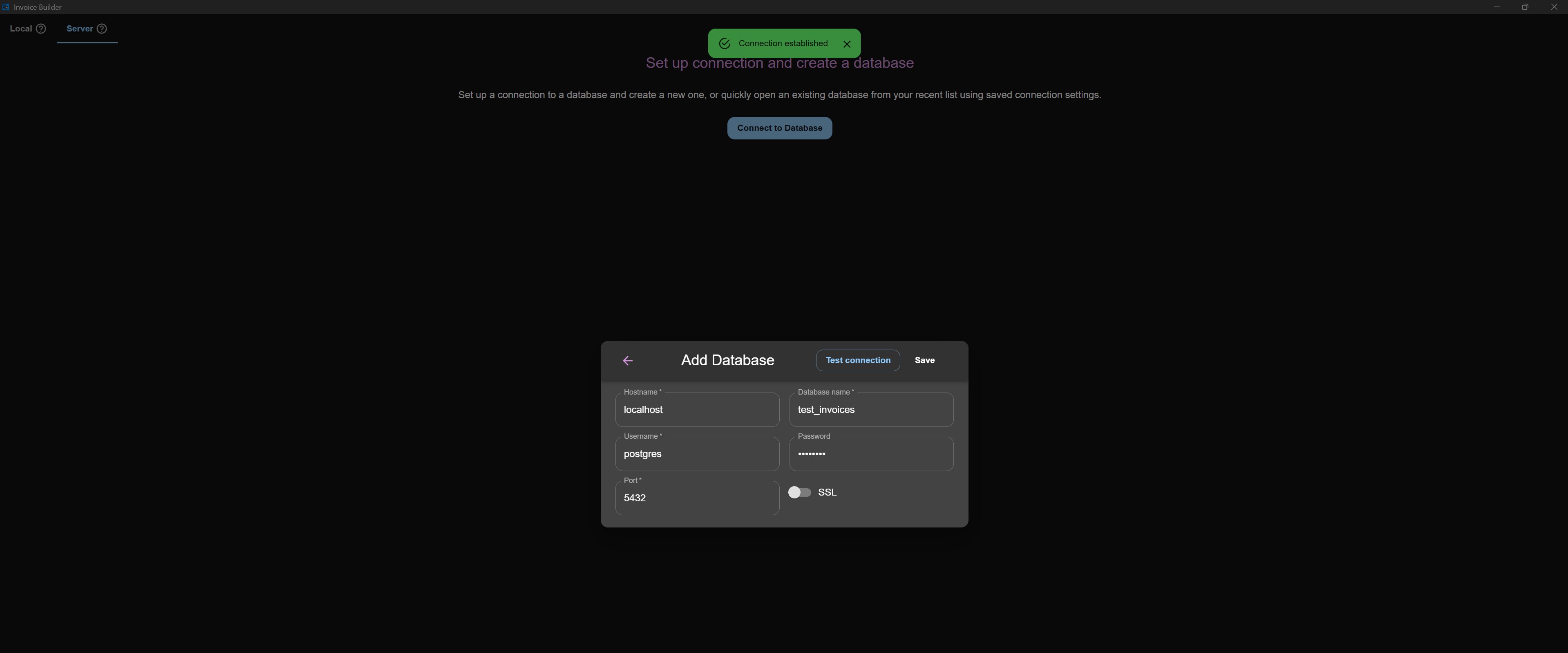
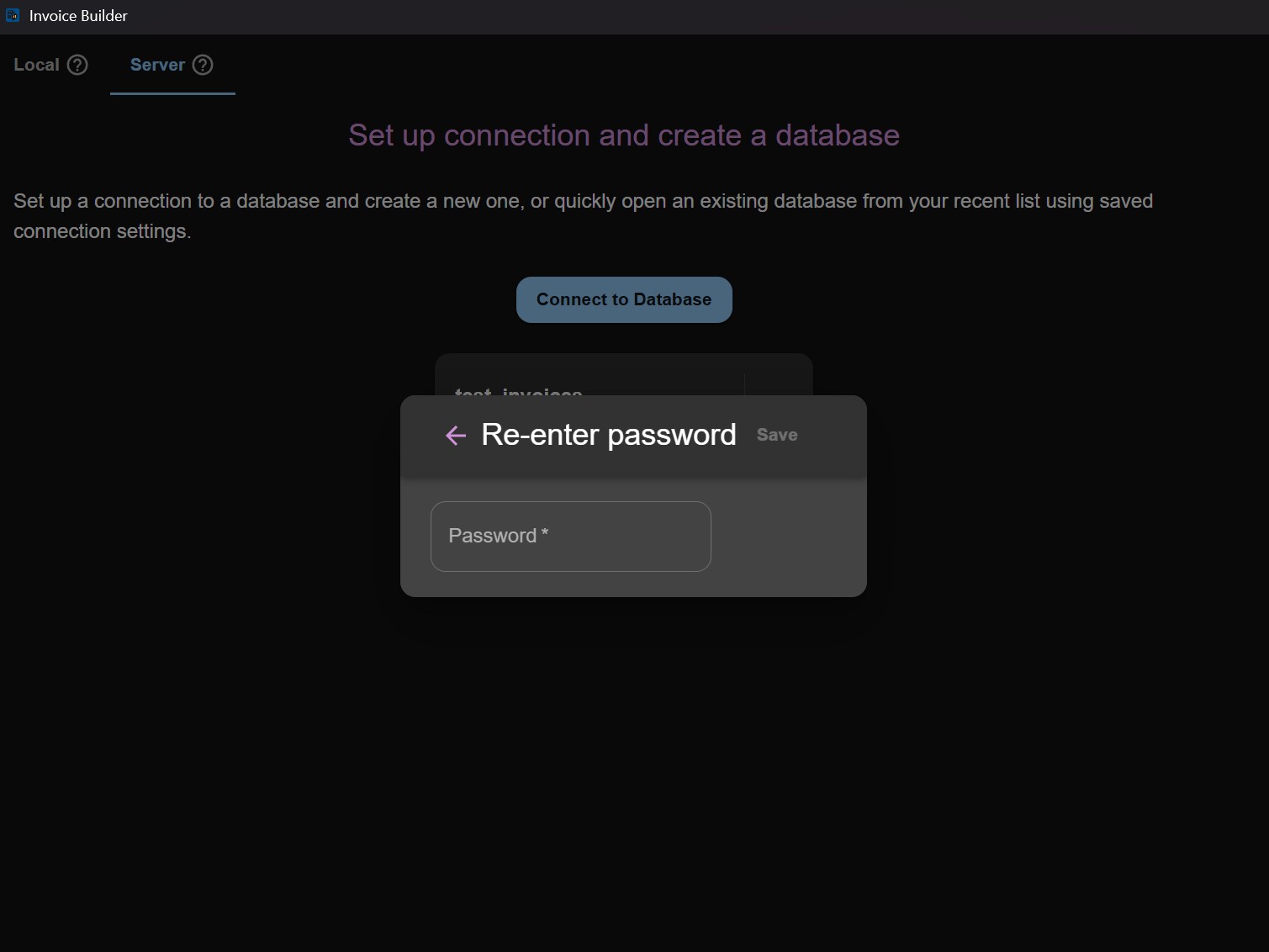
Recently used server connections also appear in a Quick Access list for faster reconnecting. For security reasons, passwords are never saved, so you will always need to re-enter the password when reconnecting. On the connection screen, you can:
- Enter server connection details
- Test the connection
- Save the connection (without password) for quick access
Switching databases
You don't need to restart the application to switch to a different database. Use the Log out option at the bottom of the sidebar menu to return to this database creation screen, where you can open or create another local database or connect to a different server.