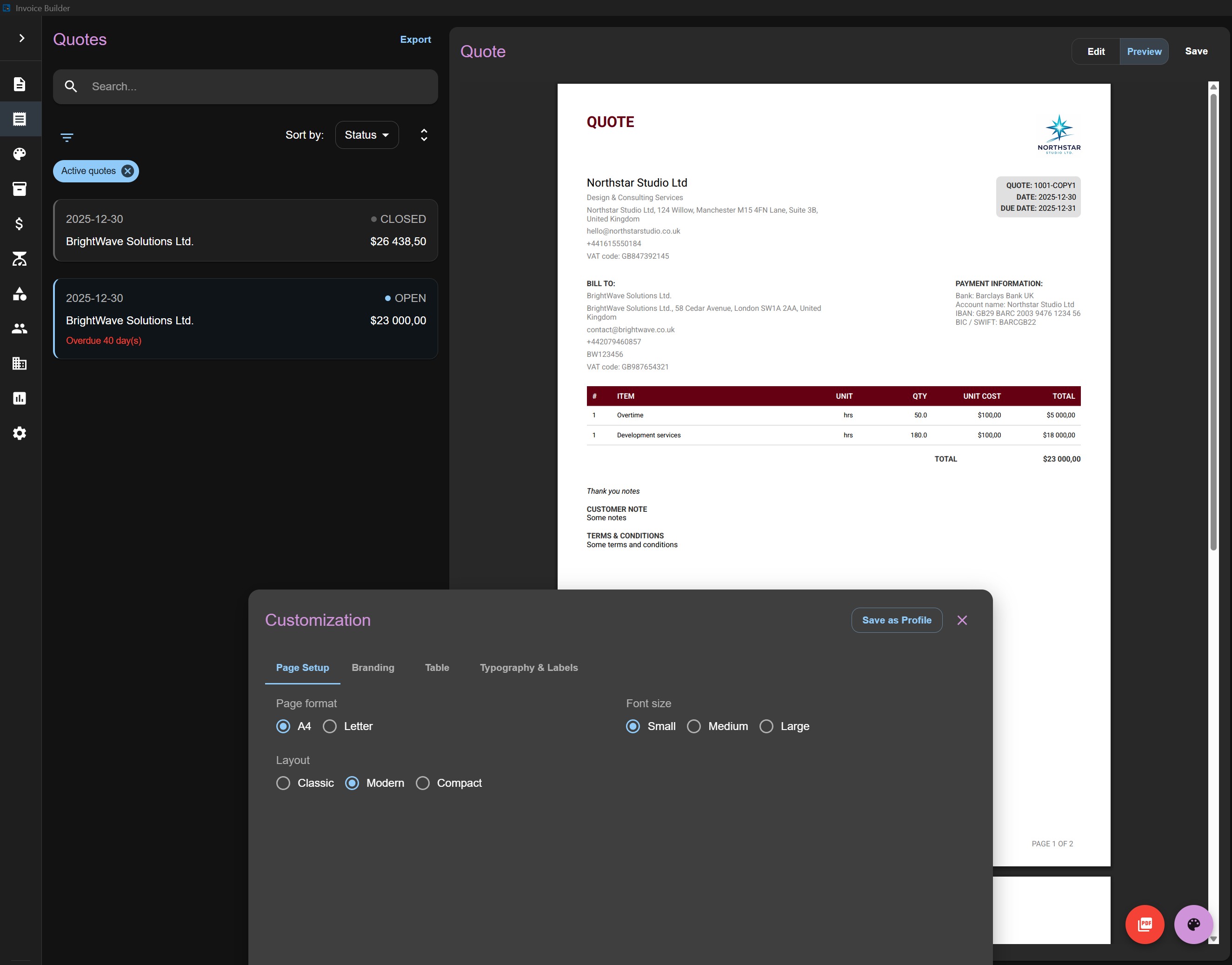
Quotes screen
The Quotes screen allows you to create, read, update, and delete (CRUD) quote records.
Amounts and dates are formatted based on the configuration in the Settings screen and the currency format defined in the Currencies screen.
You can also:
- Filter quotes by various criteria
- Export quotes to XLSX
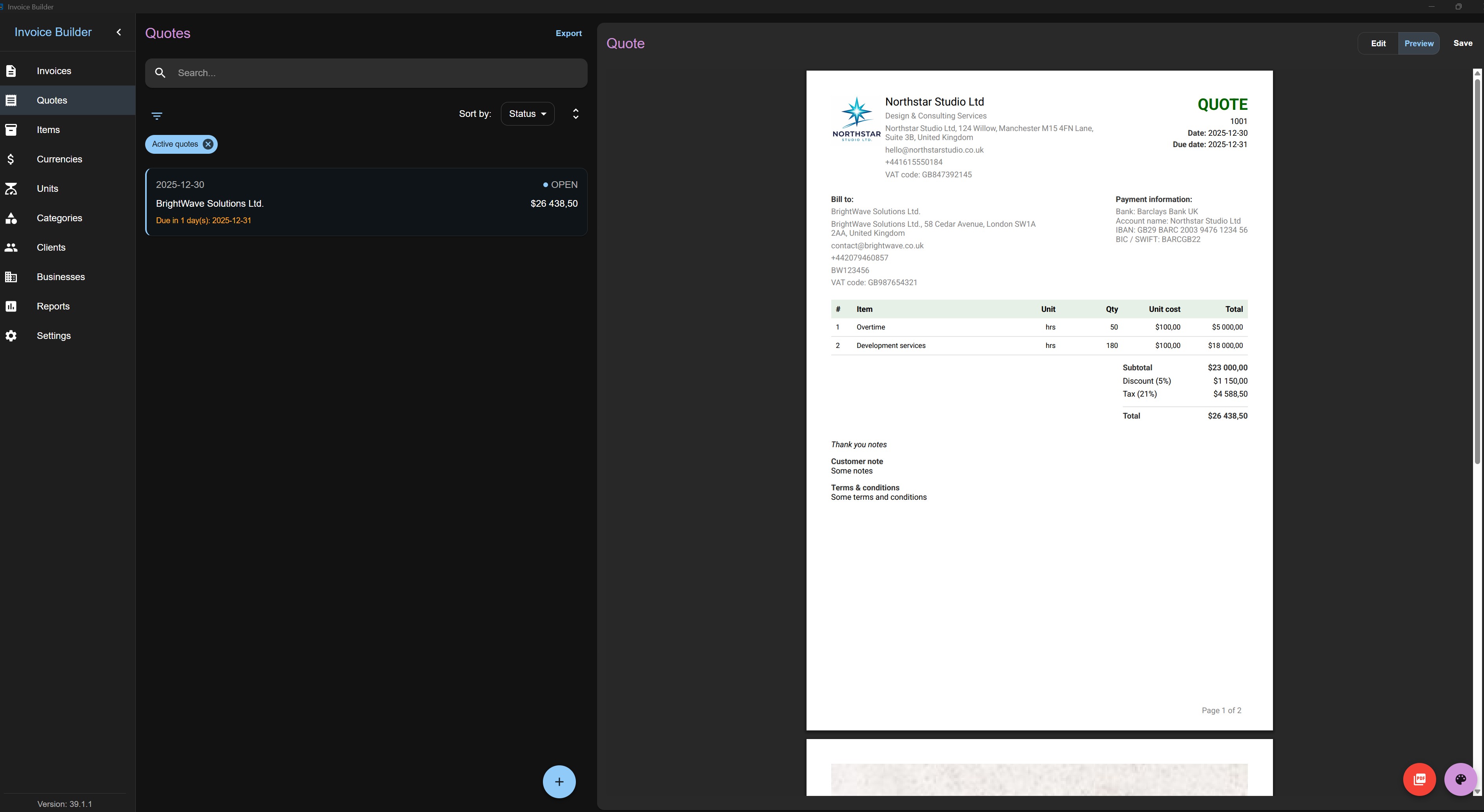
- Preview quotes live in PDF format
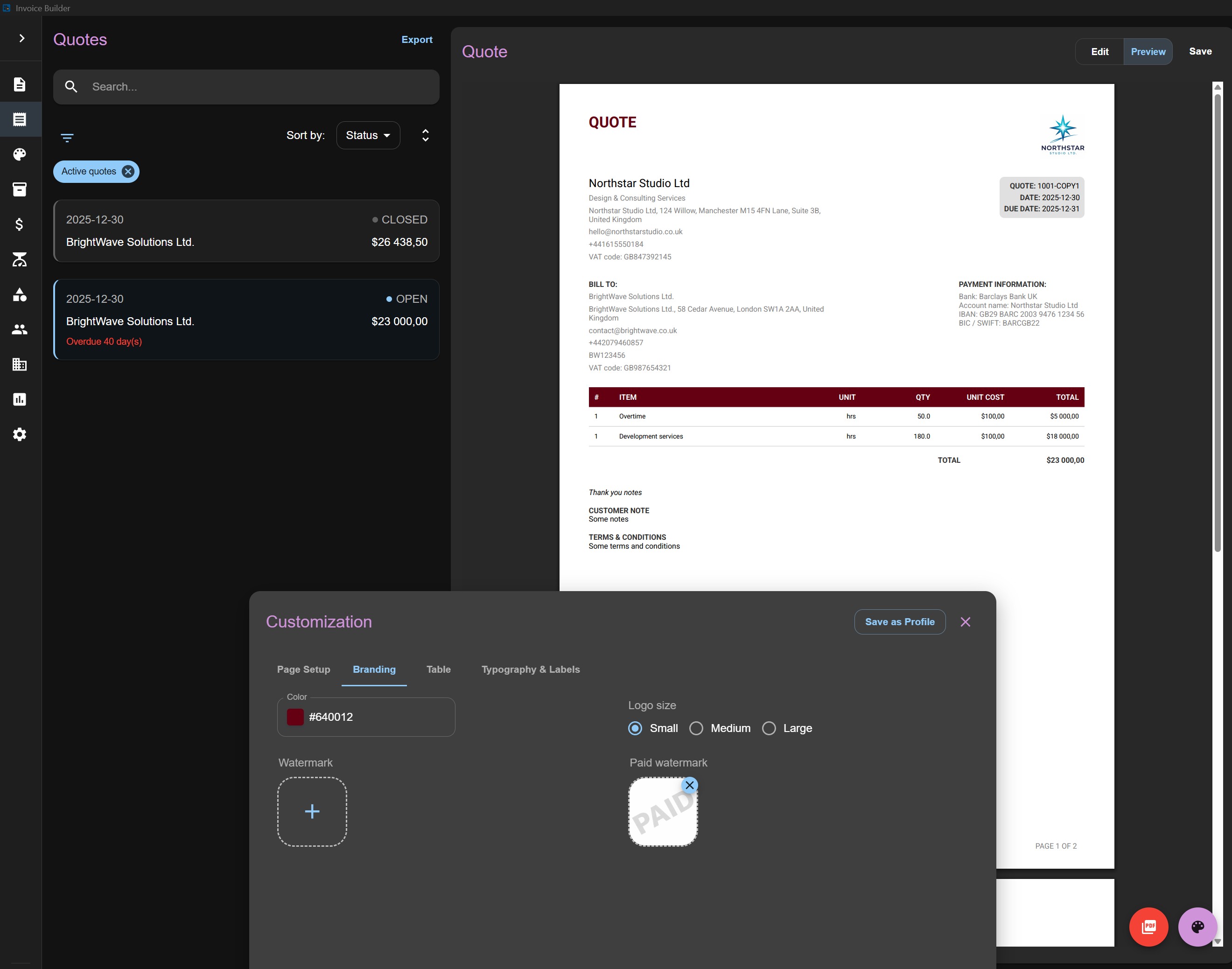
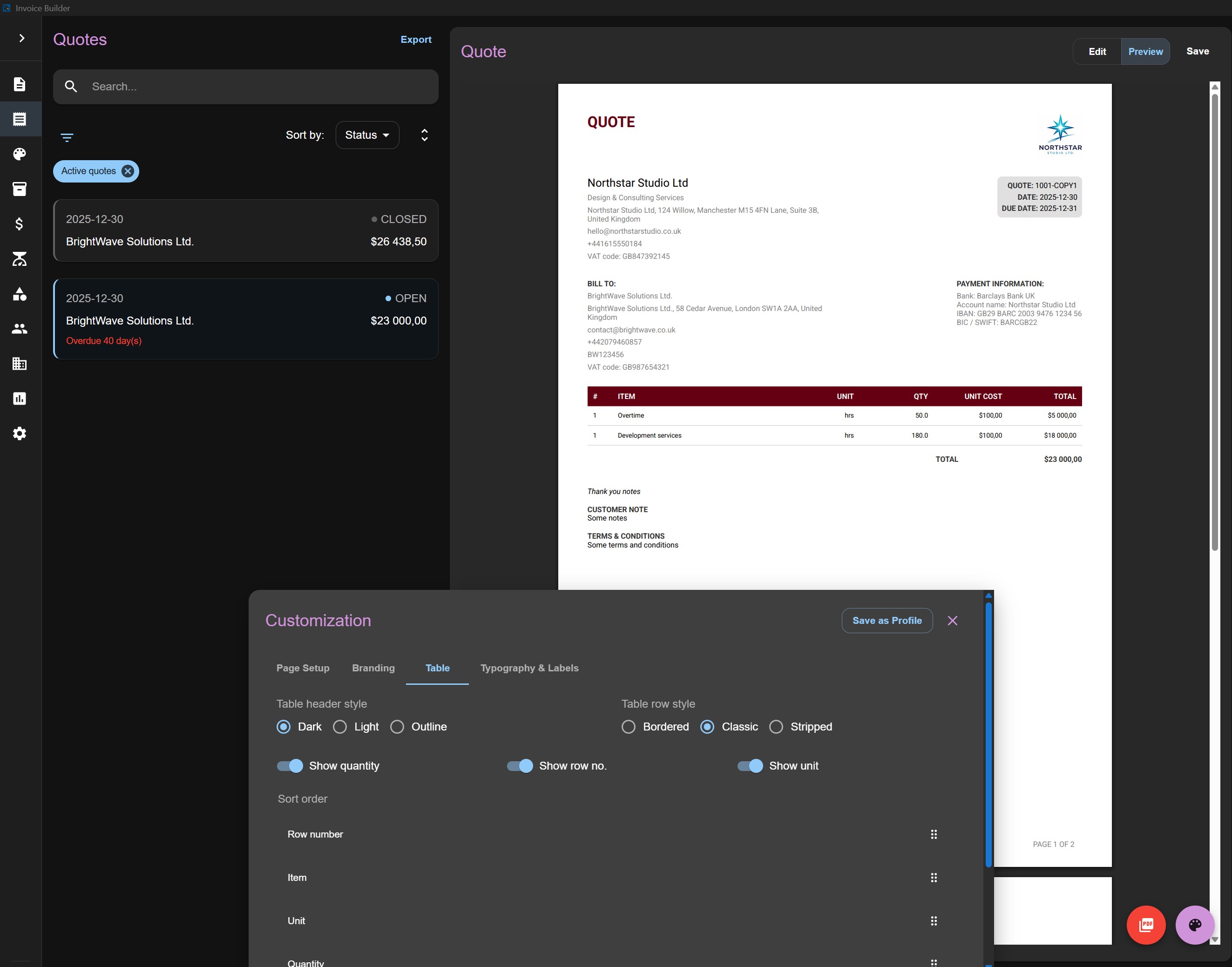
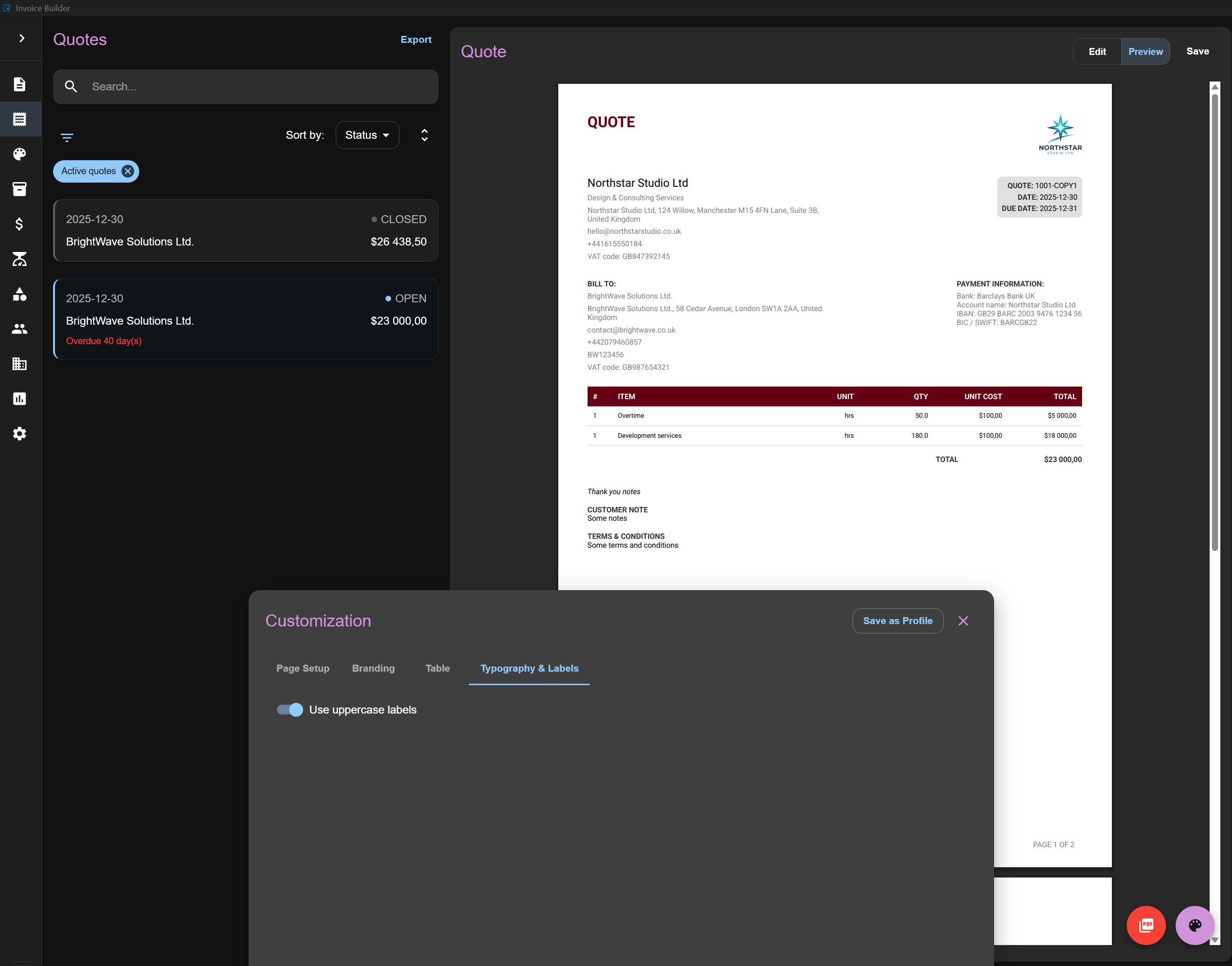
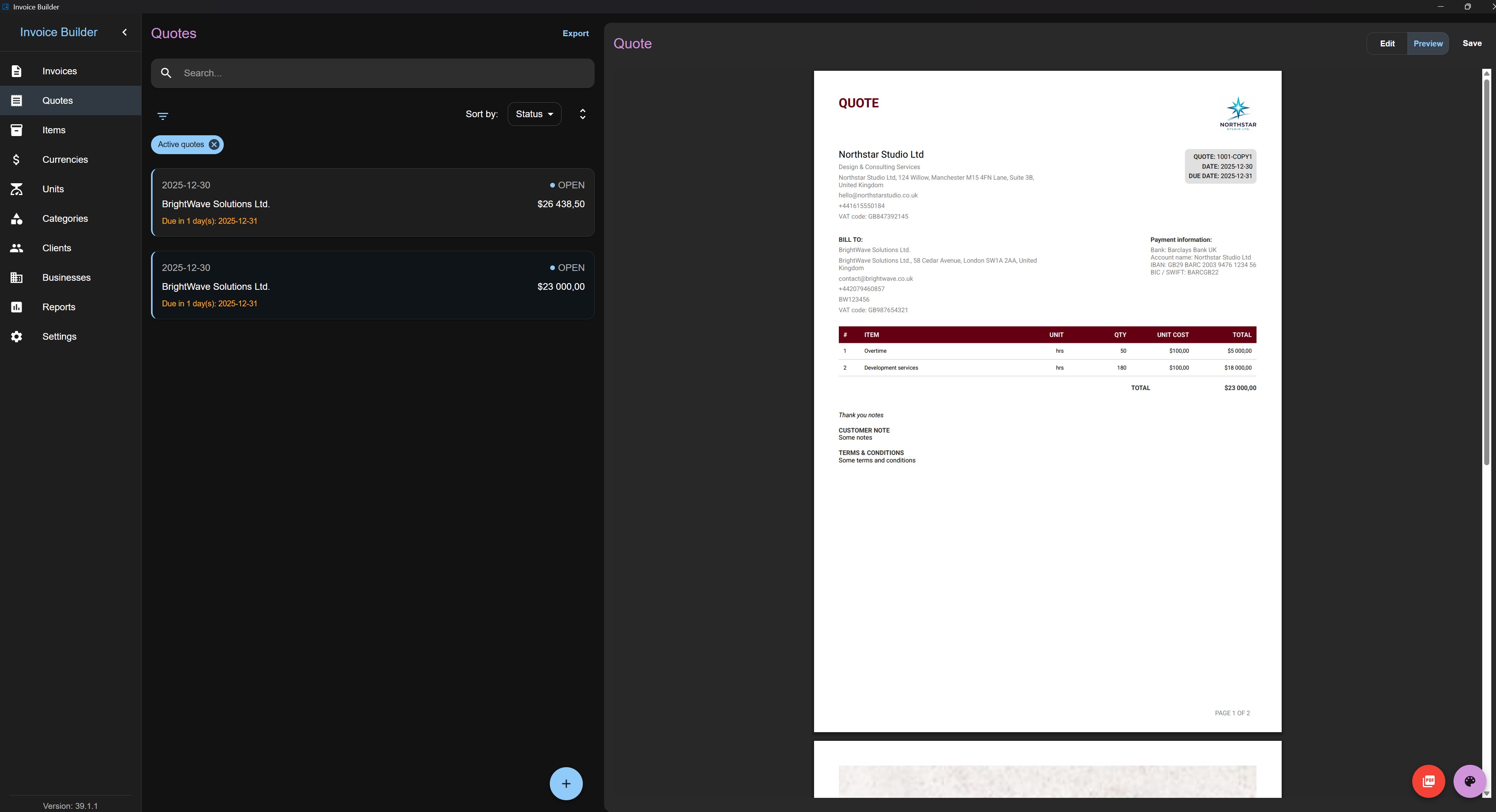
- Customize PDF appearance and layout
- Export quotes as PDF documents
- Create Invoice from Quote (generate an invoice directly from a quote, quote becomes closed, but can be manually opened again)
- Duplicate Quote to quickly create a similar quote
XLSX export does not include attachments or business logo snapshots.
Adding a Quote
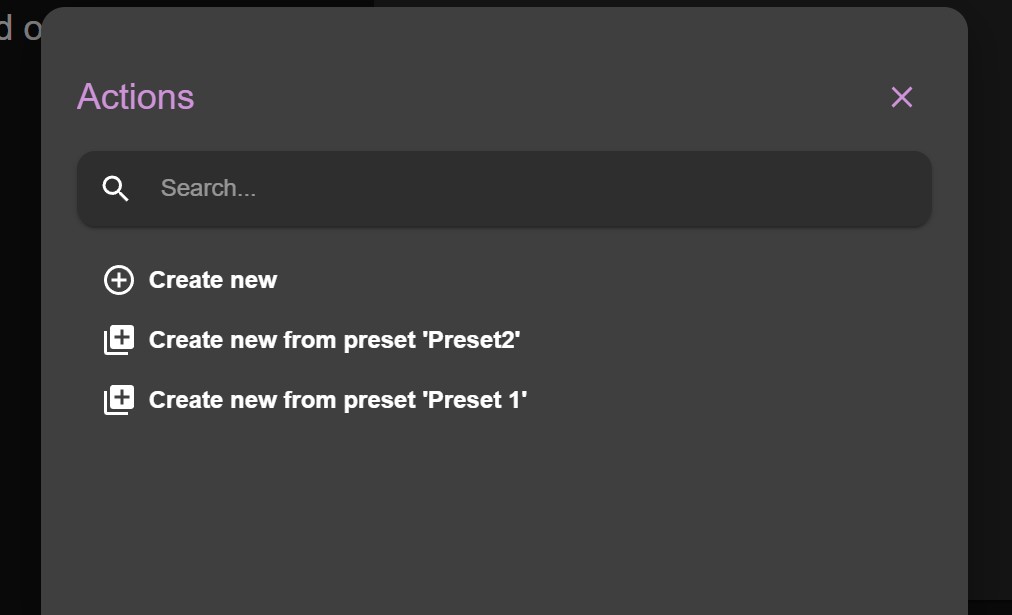
Click the Add button at the bottom to open the right-hand pane, where you can enter quote details. If the Presets screen are enabled then you will have to choose either create new or from preset.
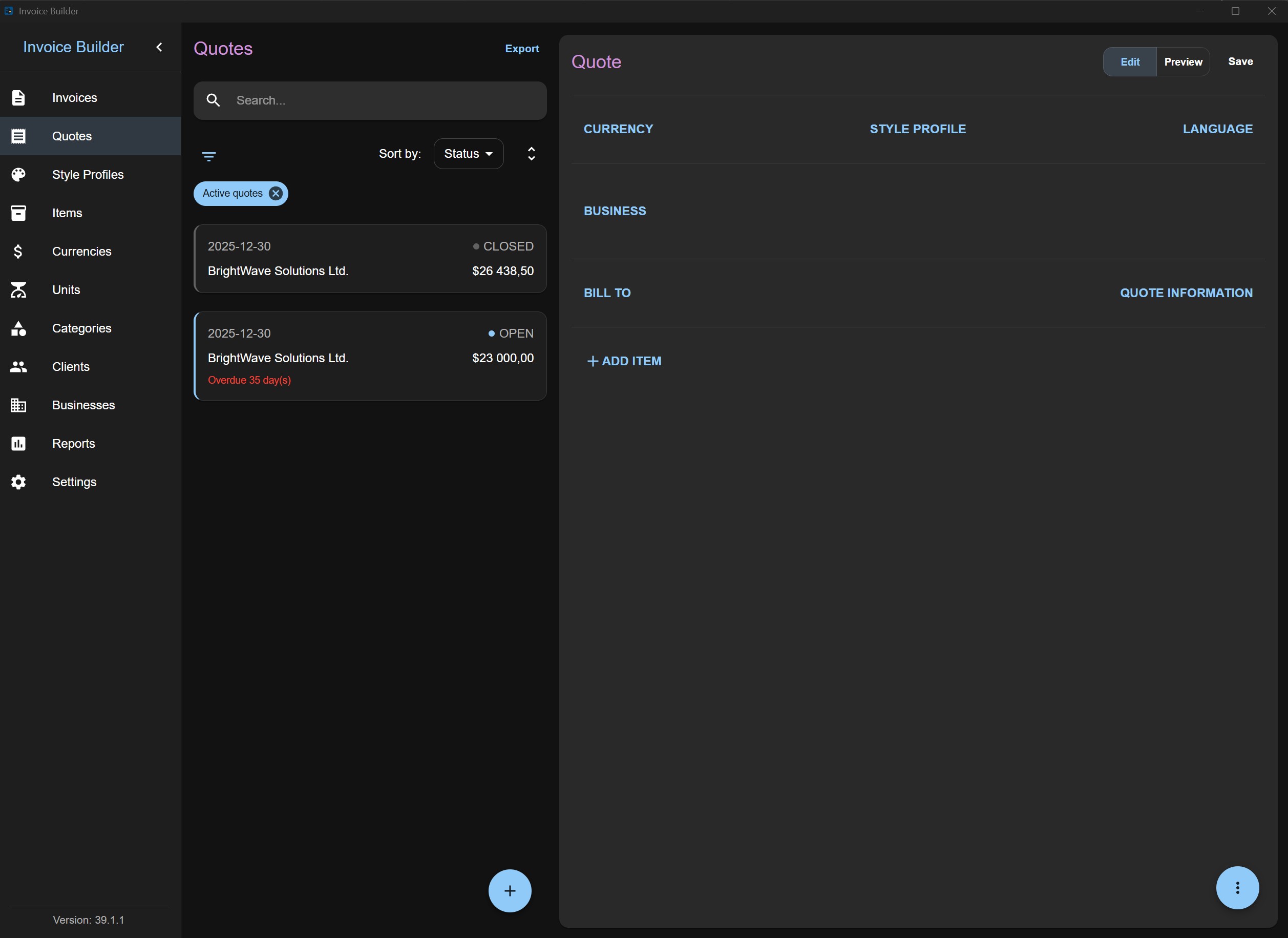
- Required information:
- Currency
- Language (Quote language for PDF labels which is independant from global application settings)
- Business
- Client (“Bill To”)
- Quote information
- At least one item
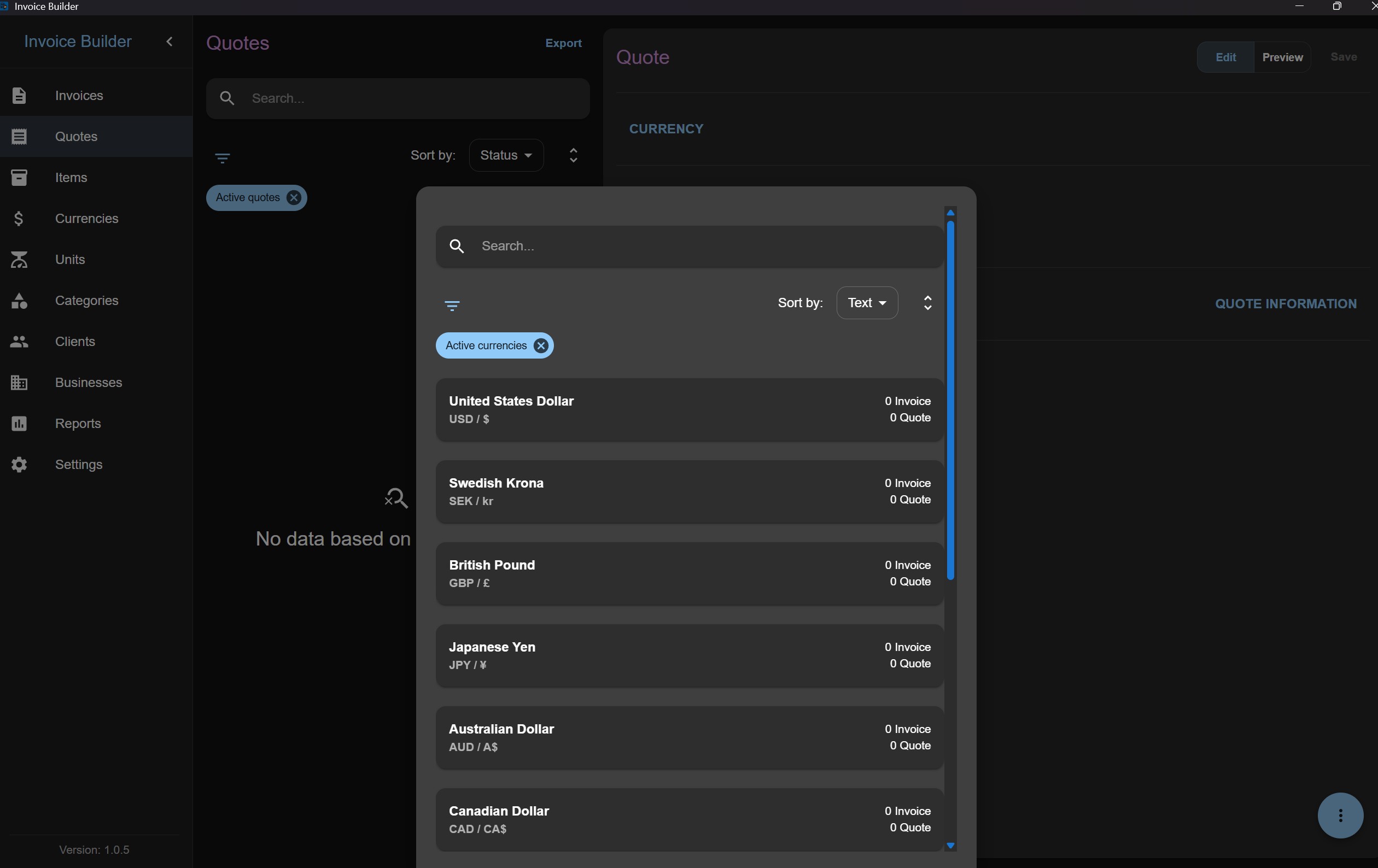
Select a currency from the dropdown. The dropdown supports search, filter, and sort (see Currencies screen for details).
The selected currency is saved as a snapshot. The snapshot is updated only when editing the quote and changing the currency.
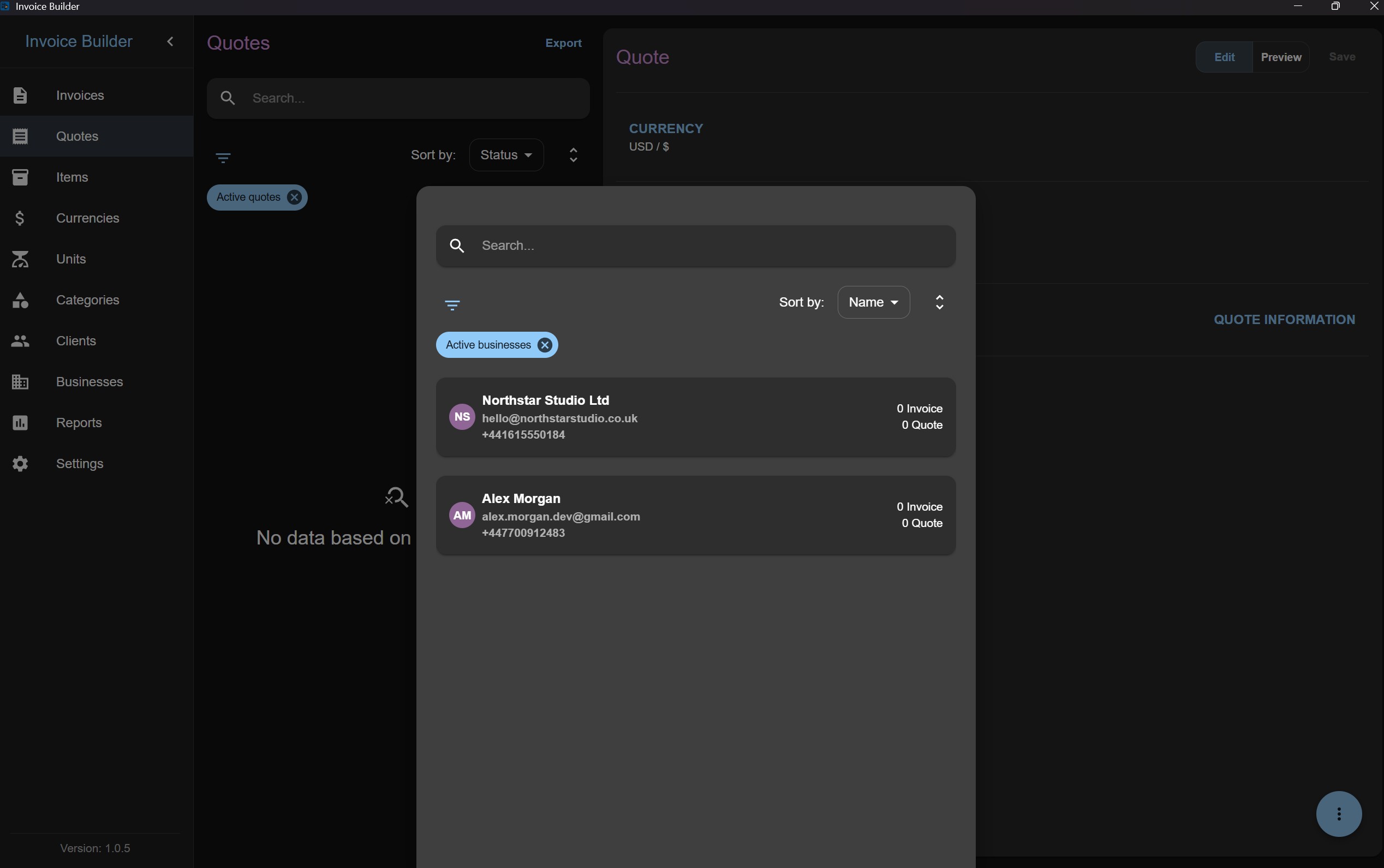
Select a business from the dropdown. The dropdown supports search, filter, and sort (see Businesses screen for details).
The selected business is saved as a snapshot. The snapshot is updated only when editing the quote and changing the business.
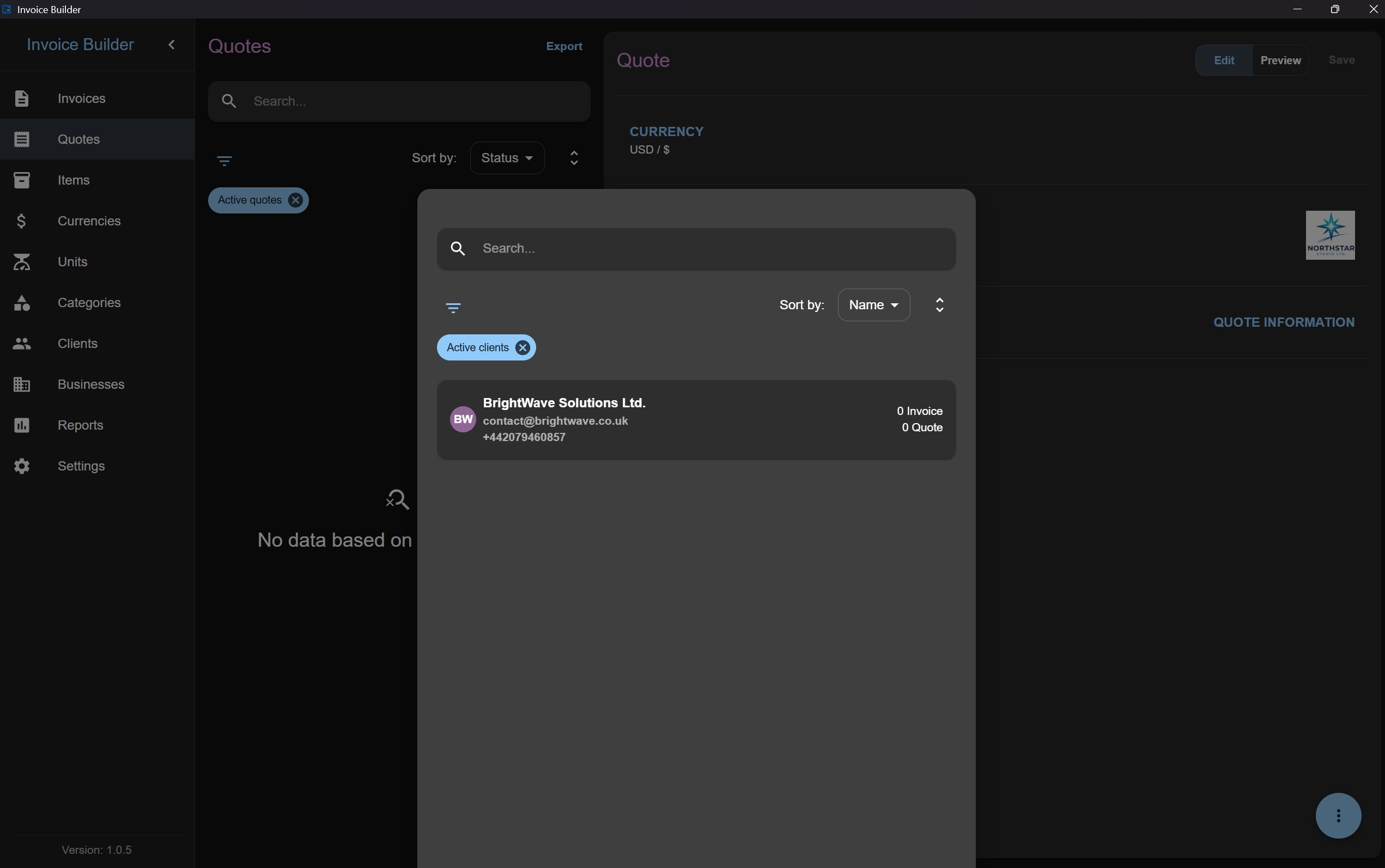
Select a client from the dropdown. The dropdown supports search, filter, and sort (see Clients screen for details).
To create a client without leaving the quote form, use the Add action in the client selector. Enter the required name and, optionally, a phone number; the new client is selected automatically after creation.
The selected client is saved as a snapshot. The snapshot is updated only when editing the quote and changing the client.
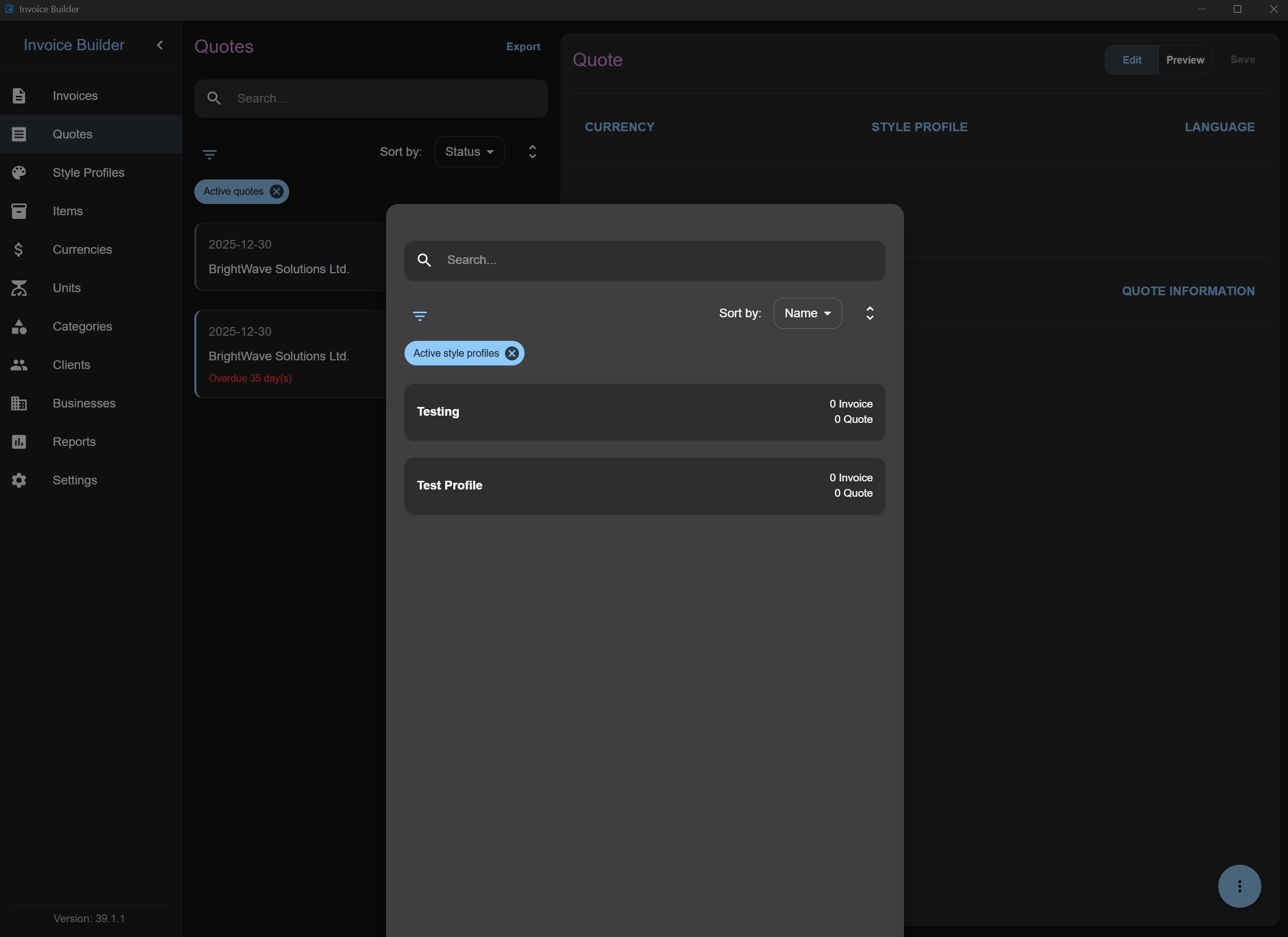
Select a style profile from the dropdown. The dropdown supports search, filter, and sort (see Style profiles screen for details).
The selected style profile is saved as a snapshot. The snapshot is updated only when editing the quote and changing the style profile.
This section can be hidden if the feature is turned off in the settings. Customization can still be adjusted in preview mode.
Selecting a style profile only applies preset values. You can continue customizing everything afterward.
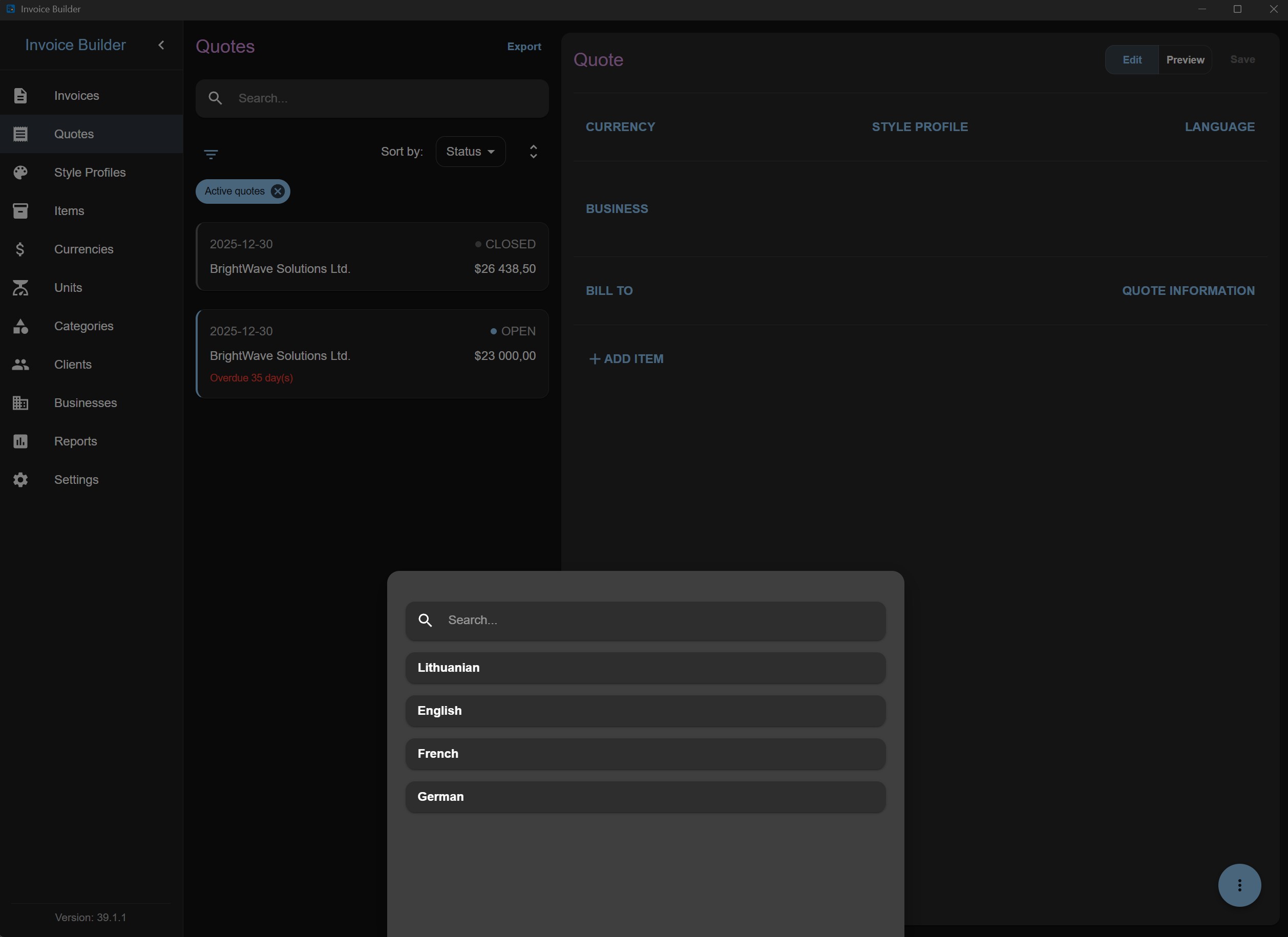
Select a language from the dropdown. The dropdown supports search.
The selected language applies only to the generated PDF and is independent of the application's global language setting.
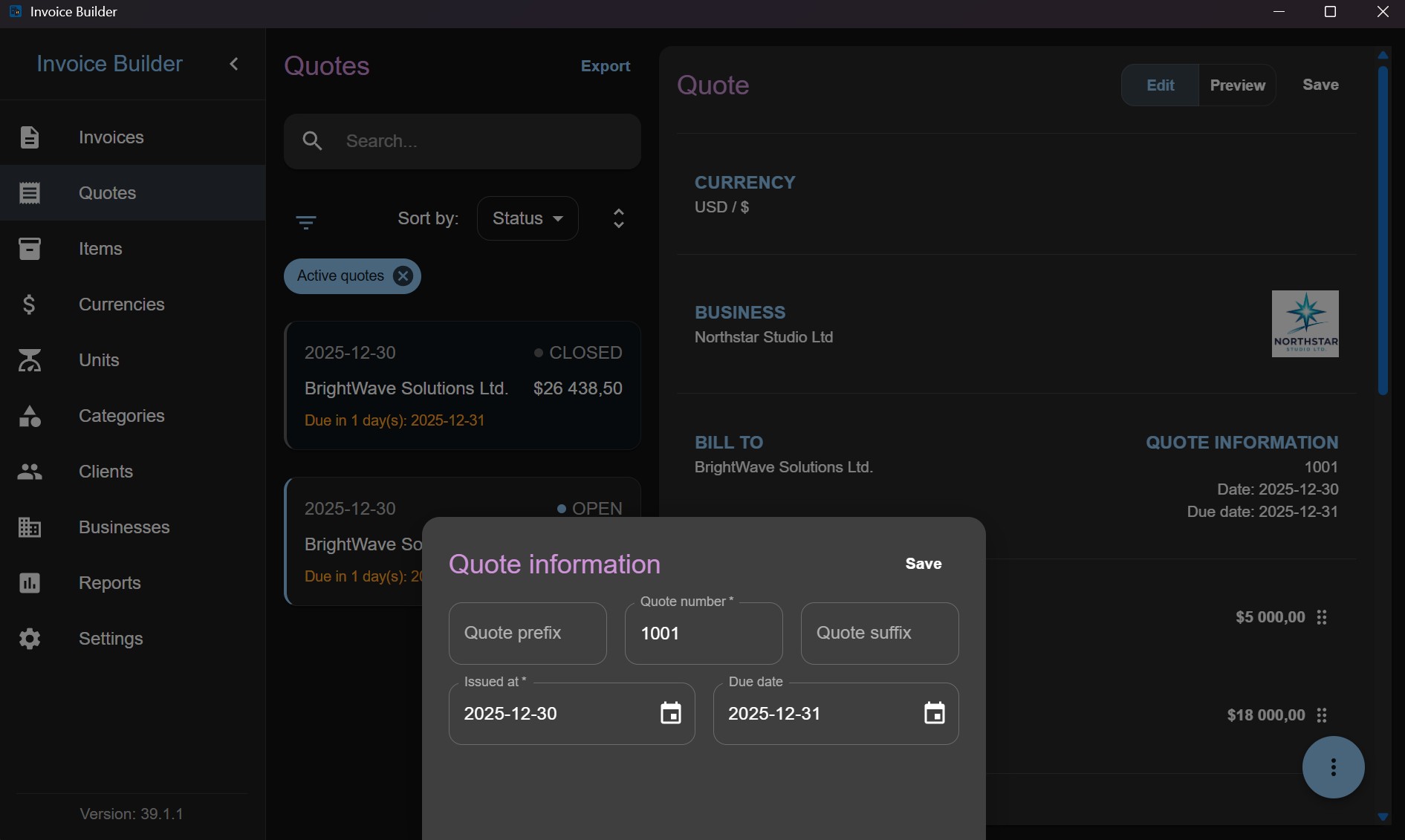
Enter the quote details, including:
- Quote number prefix
- Quote number suffix
- Quote number
- Issued date
- Due date
- The prefix and suffix are saved as a snapshot if they were configured on the Settings screen.
- You can also change or add them here, even if they were not configured in Settings.
- If configured, the prefix and suffix are always incorporated into the quote number automatically.
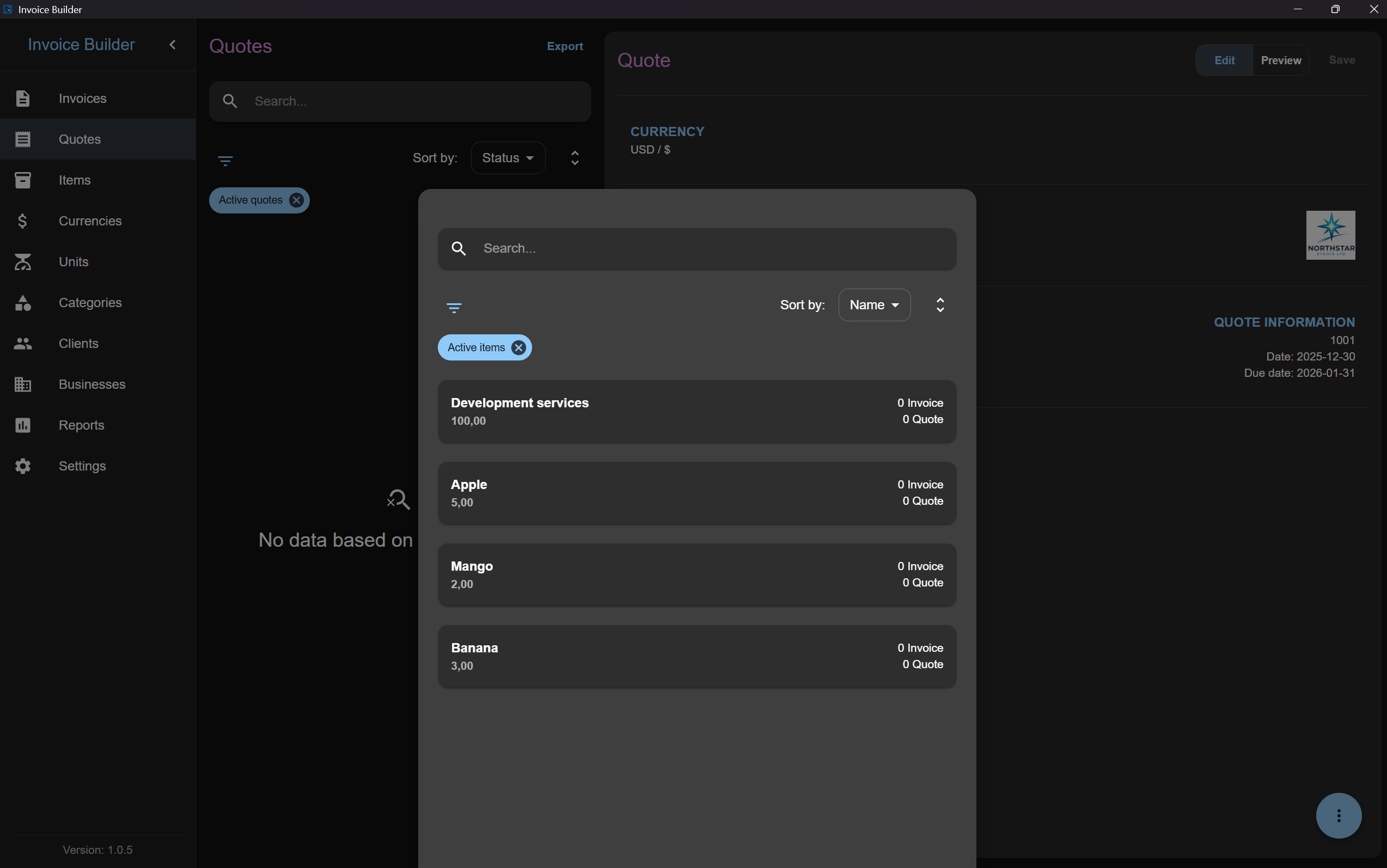
Select a item from the dropdown and set quantity and unit price. The dropdown supports search, filter, and sort (see Items screen for details).
The selected item is saved as a snapshot. The snapshot is updated only when editing the quote and changing the item.
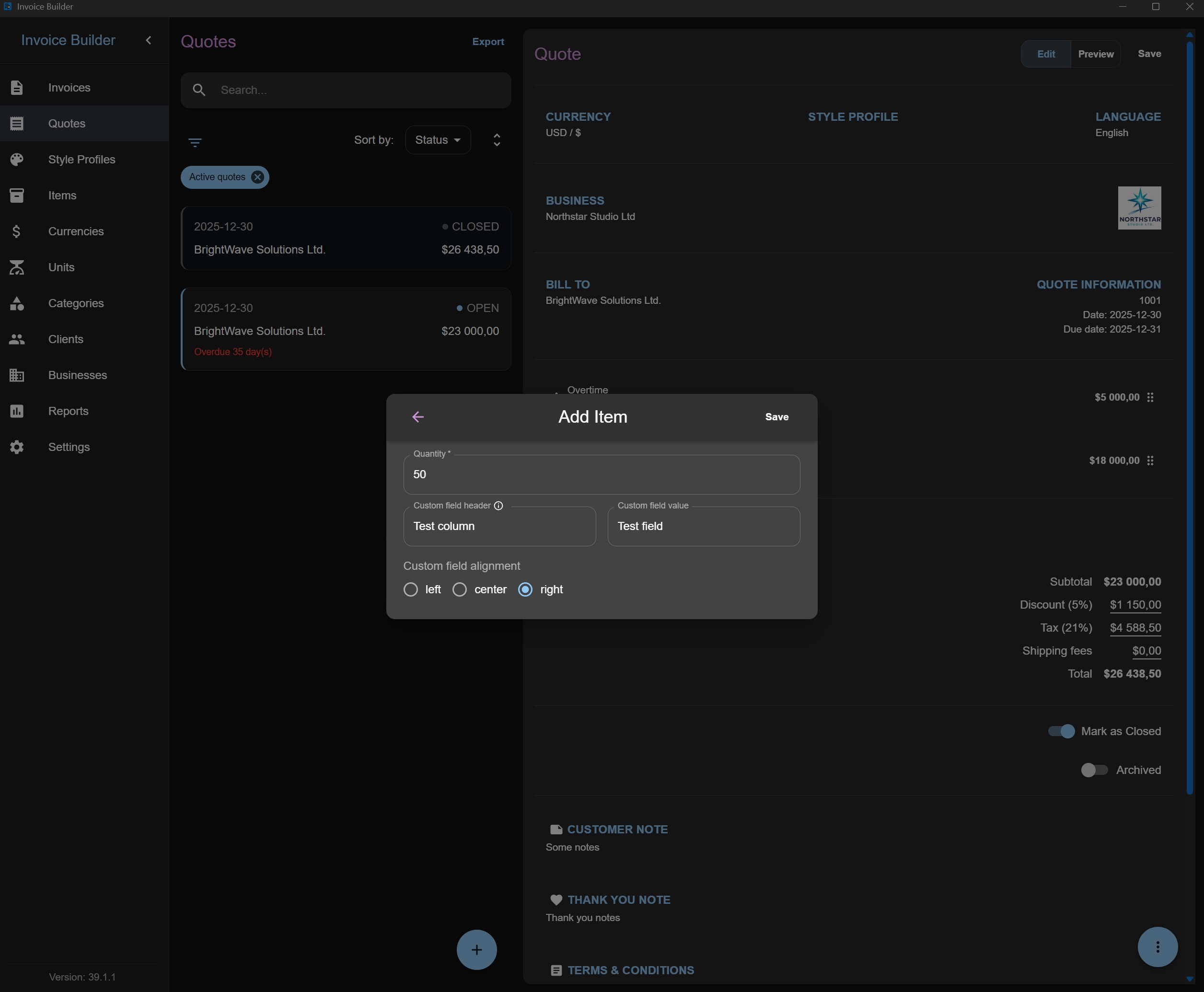
When adding or editing an item in a quotation, a modal will appear requiring you to set the quantity and unit price. You can also define custom field data for the item, including a header, value, and alignment. Each unique custom header is added as a column in the PDF’s item table, and the corresponding value is placed in that column for the item. Alignment is configured per unique header. A header can be selected from the existing list or typed in as a new one (pressing Enter is required to register a new header). Both fields header and value must either be fully selected / entered or empty; otherwise, the Save button will remain disabled.
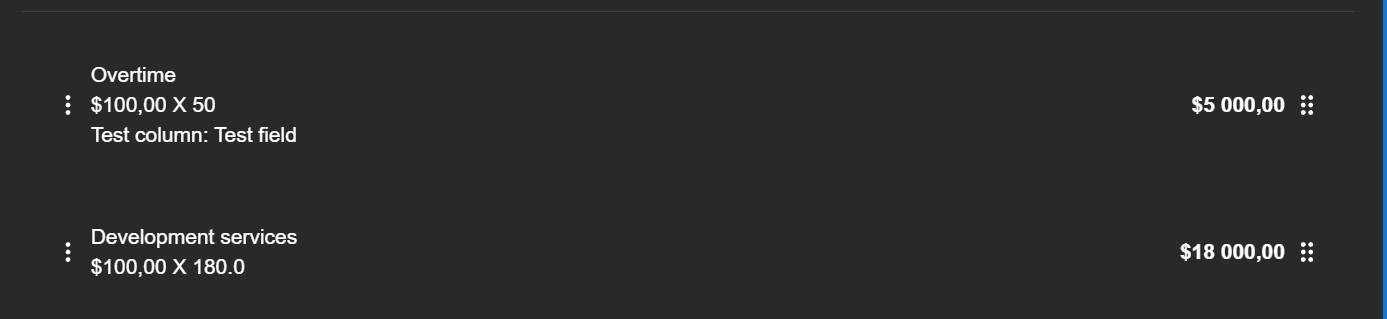
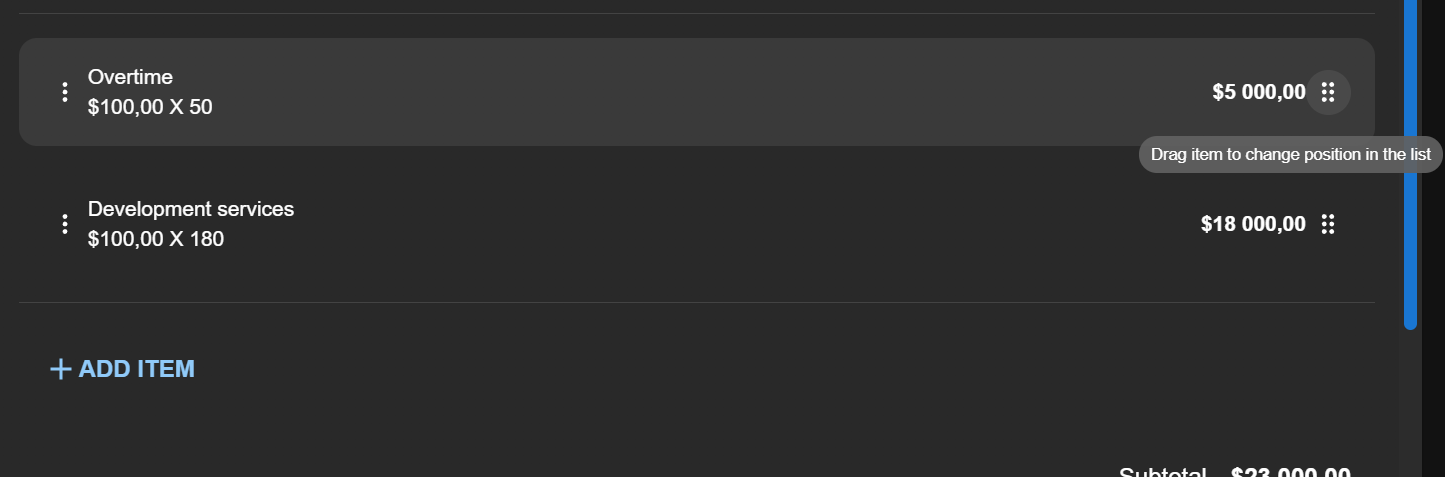
The items order can be changed by drag and drop.
Once all required information has been filled in, the quote can be saved.
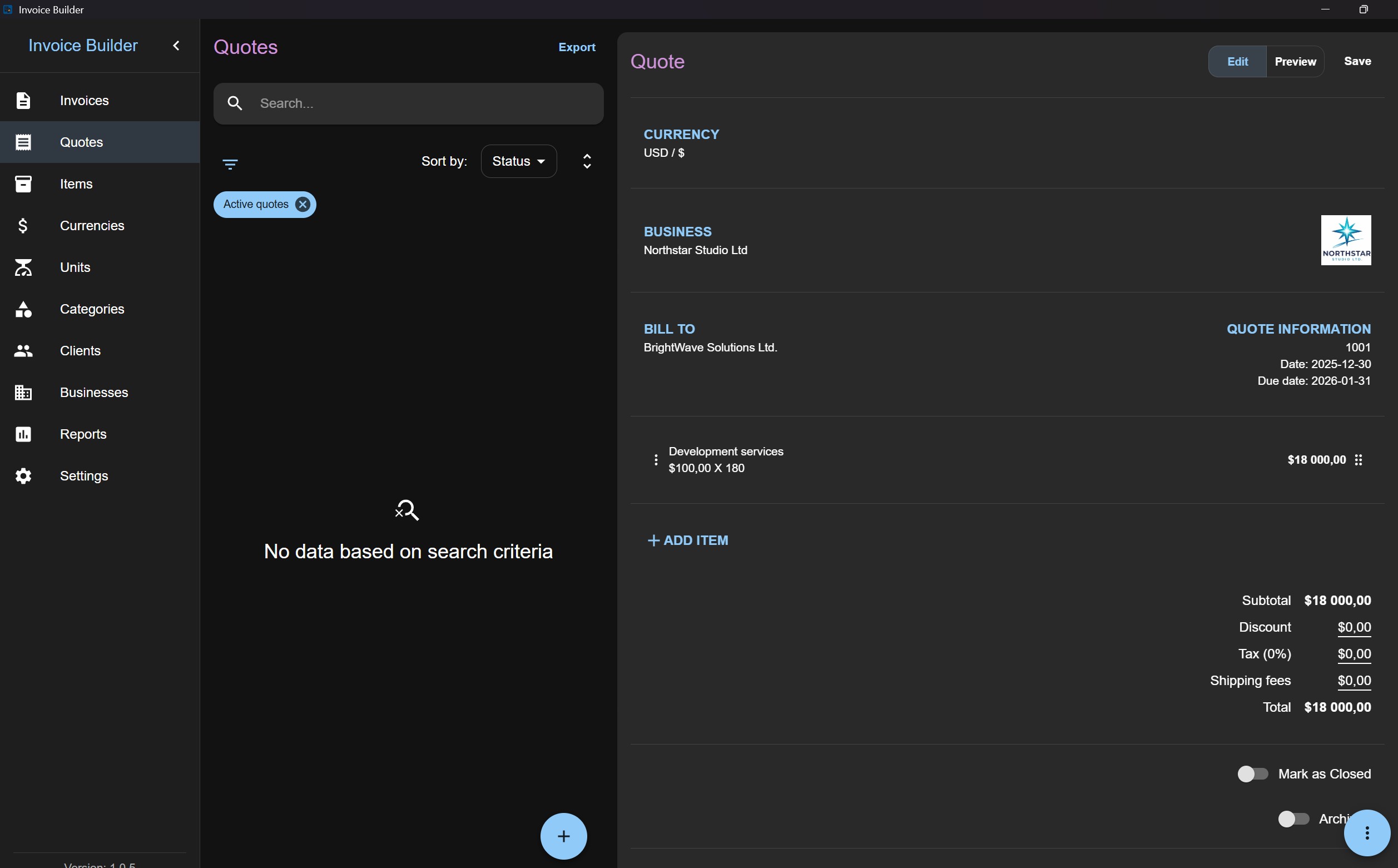
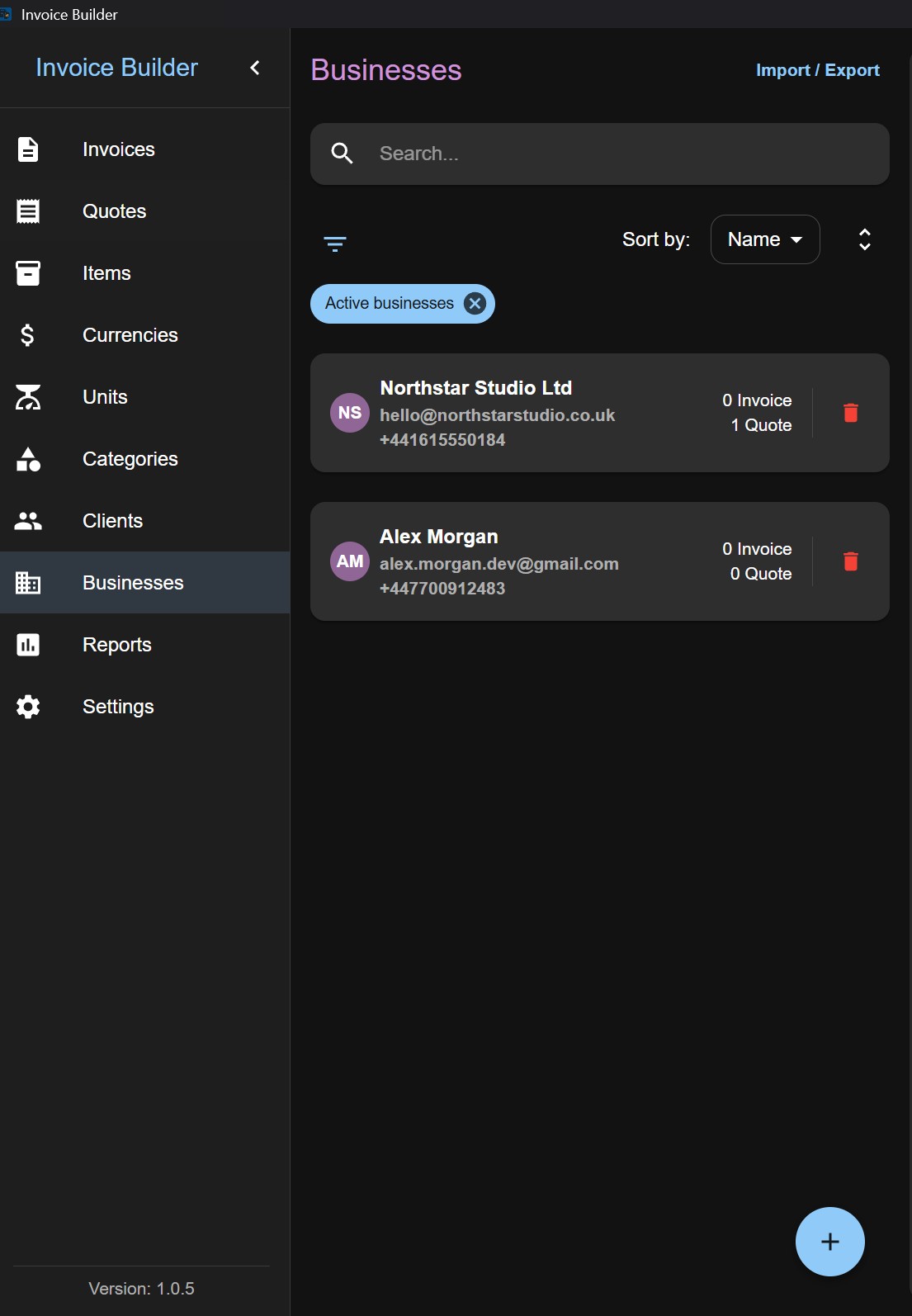
Information on other pages is also updated to reflect the current quote count.
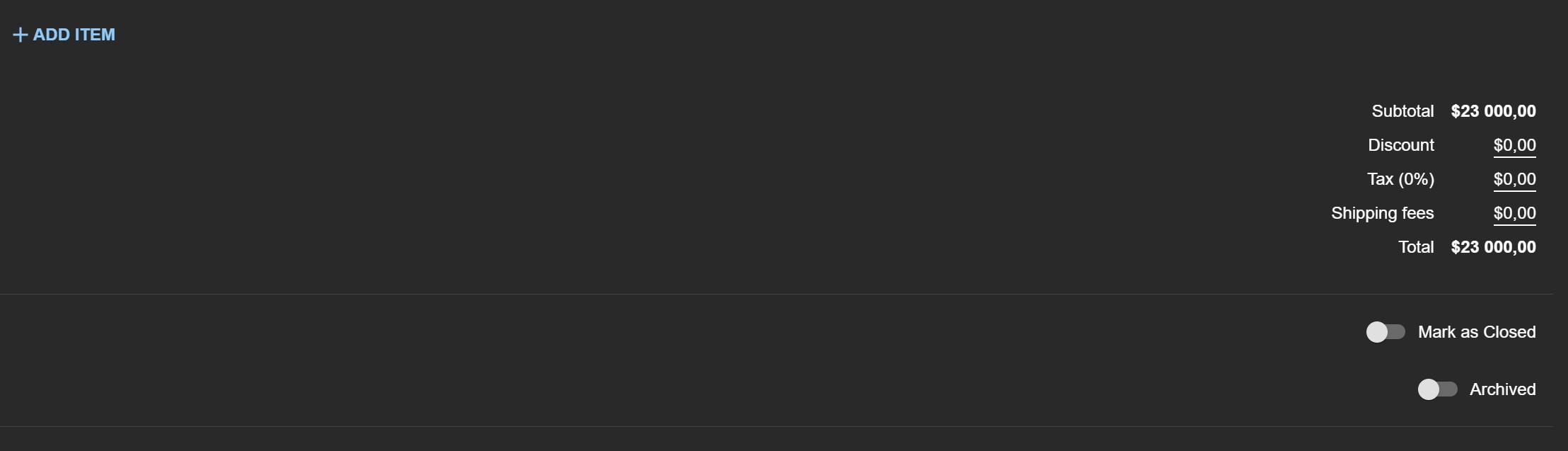
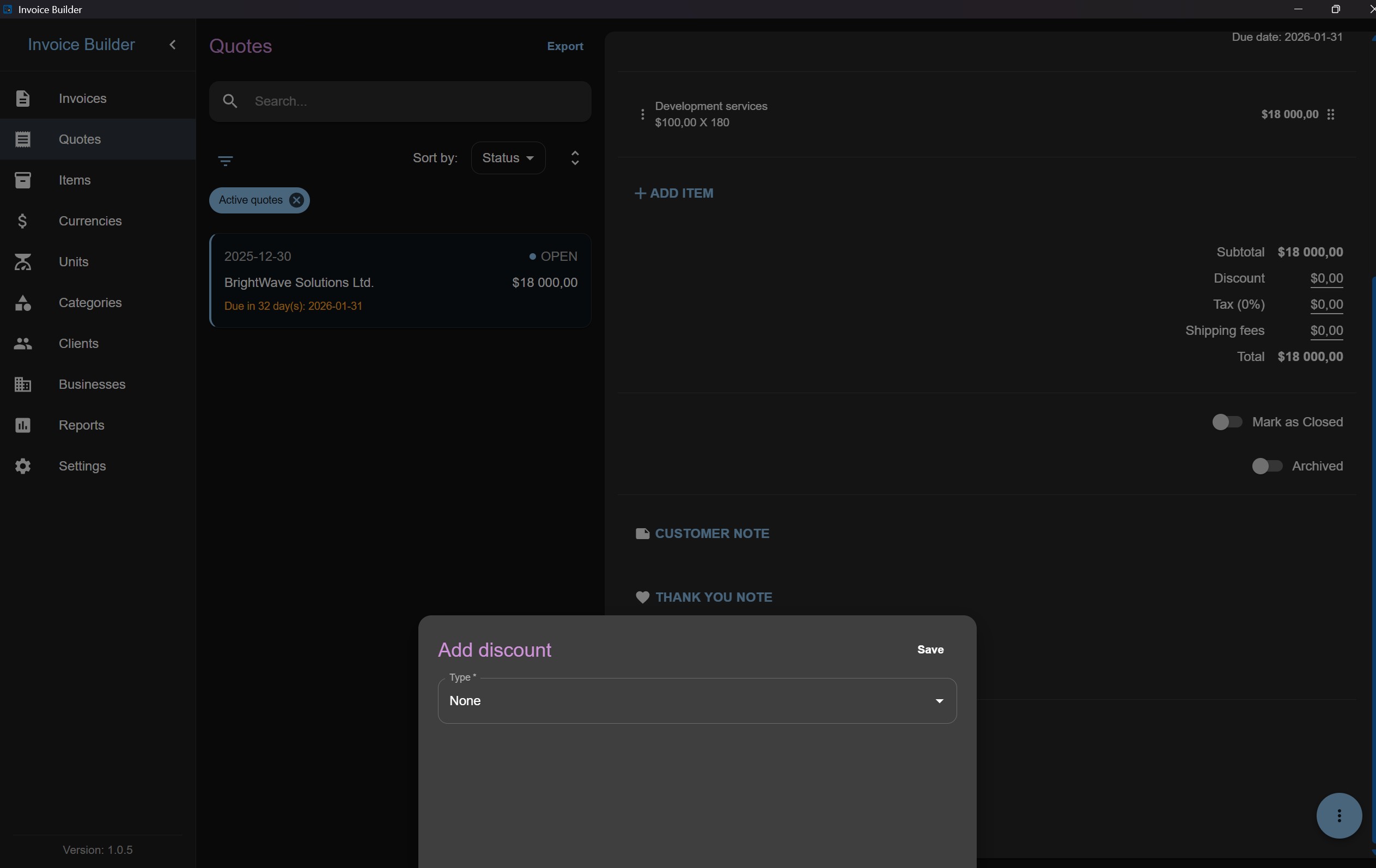
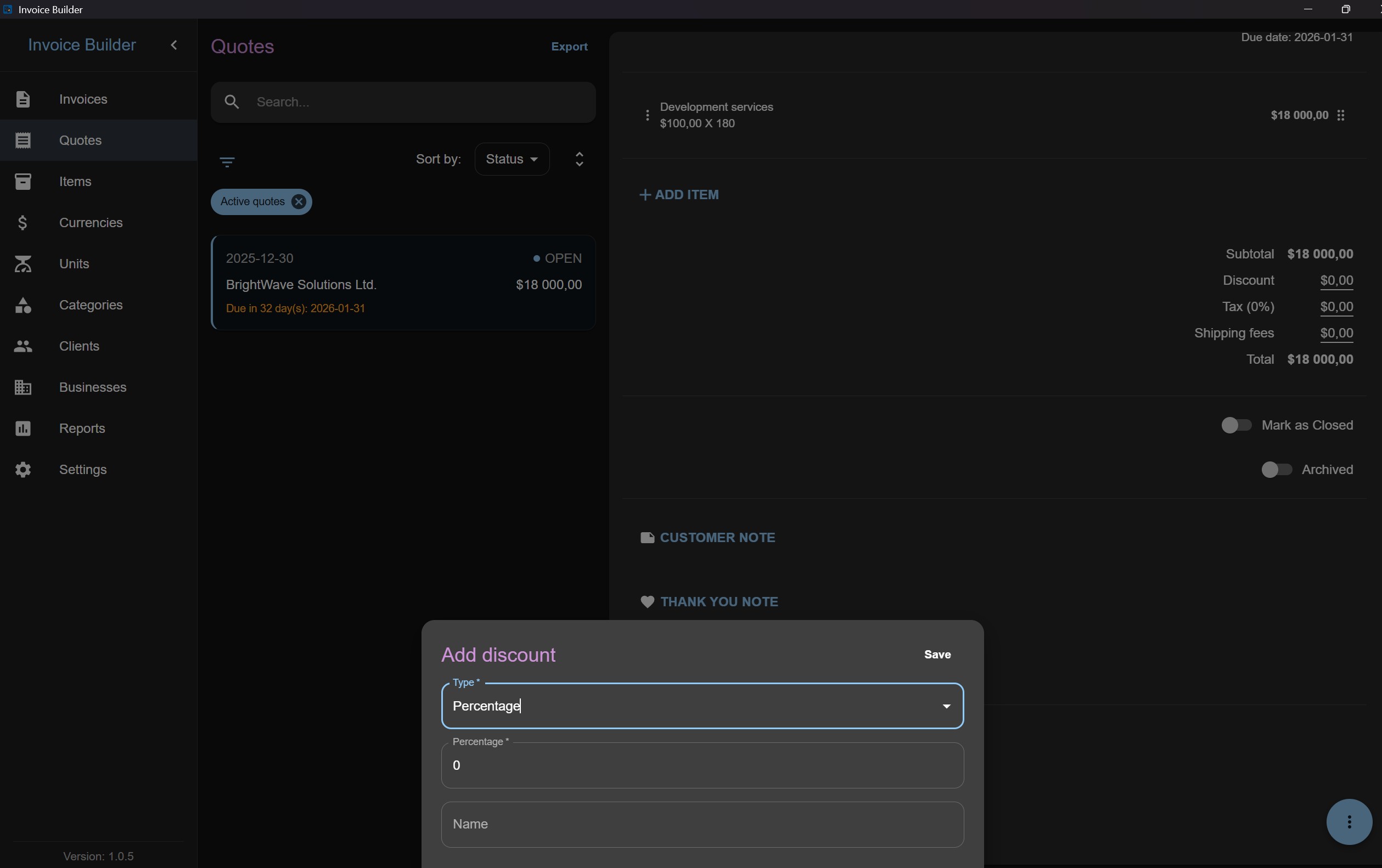
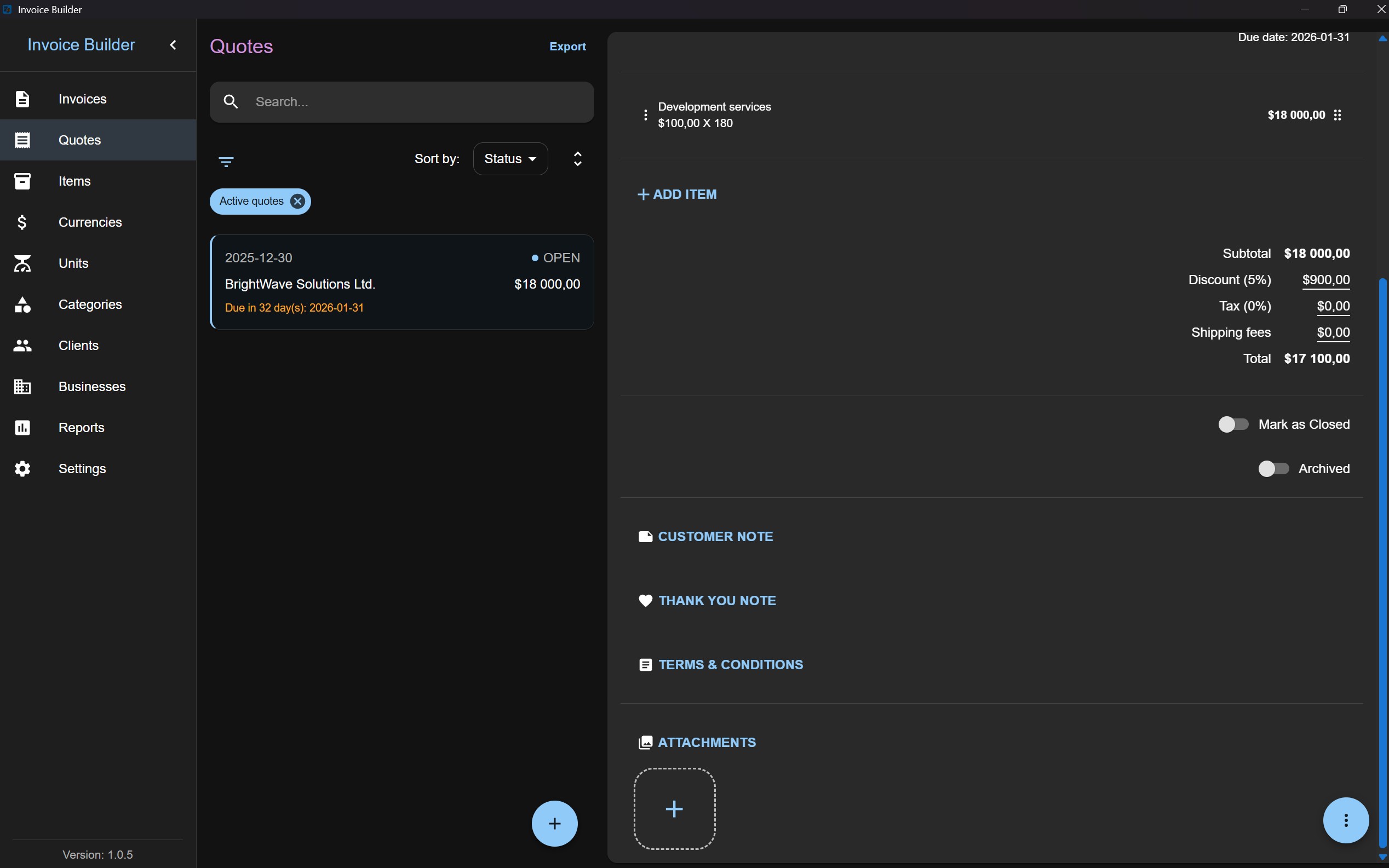
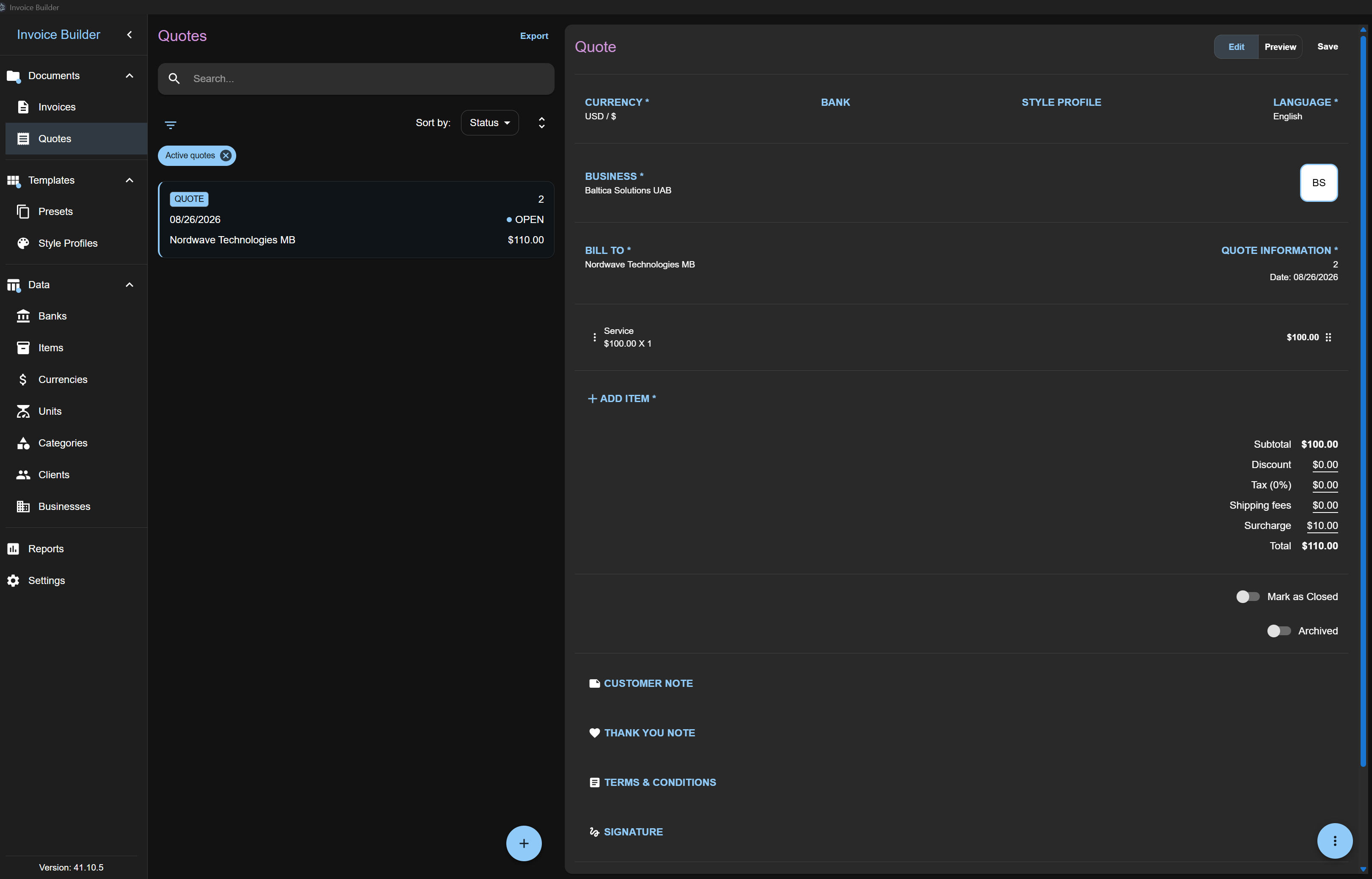
Additionally, you can set a discount (fixed amount or percentage-based).
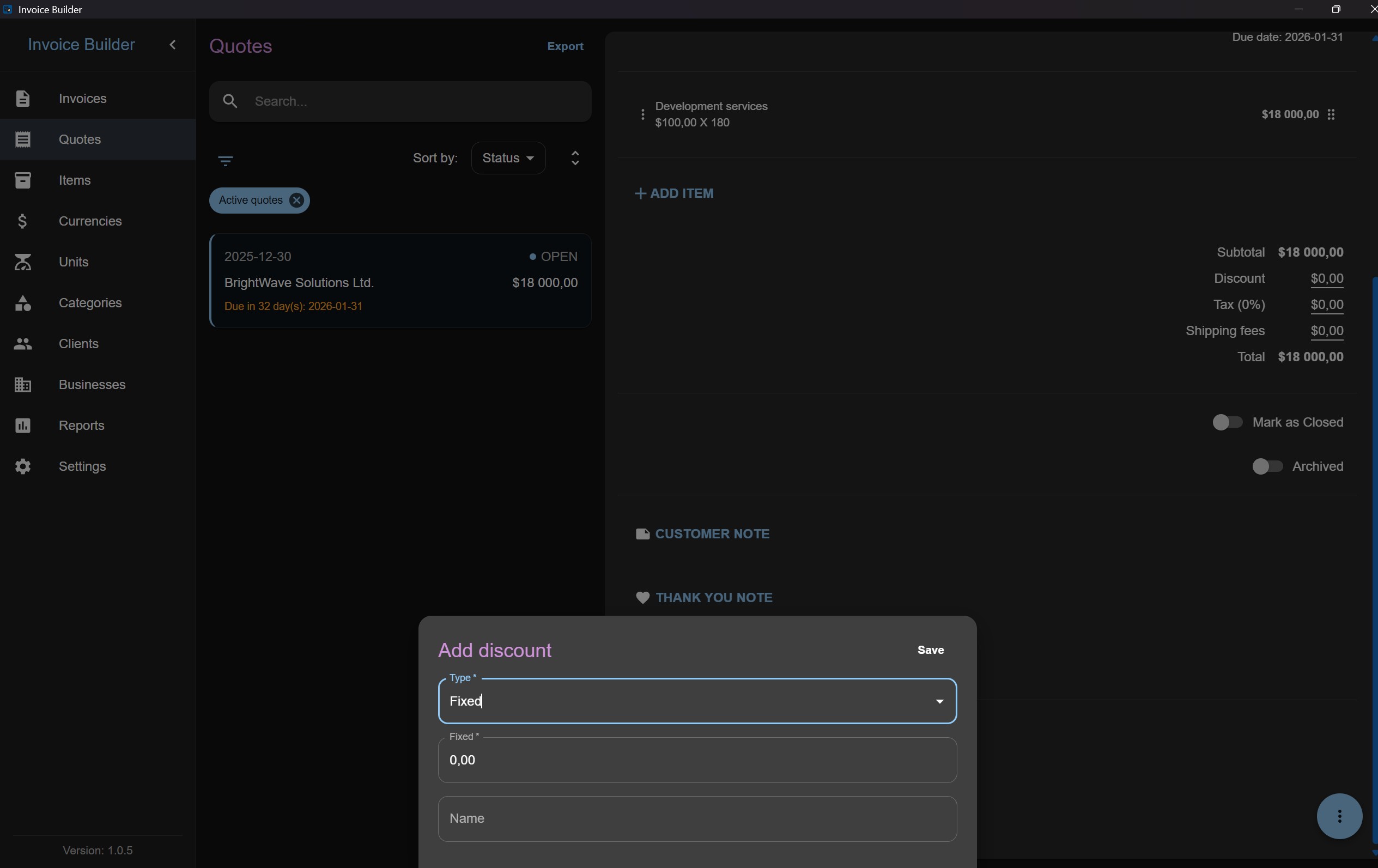
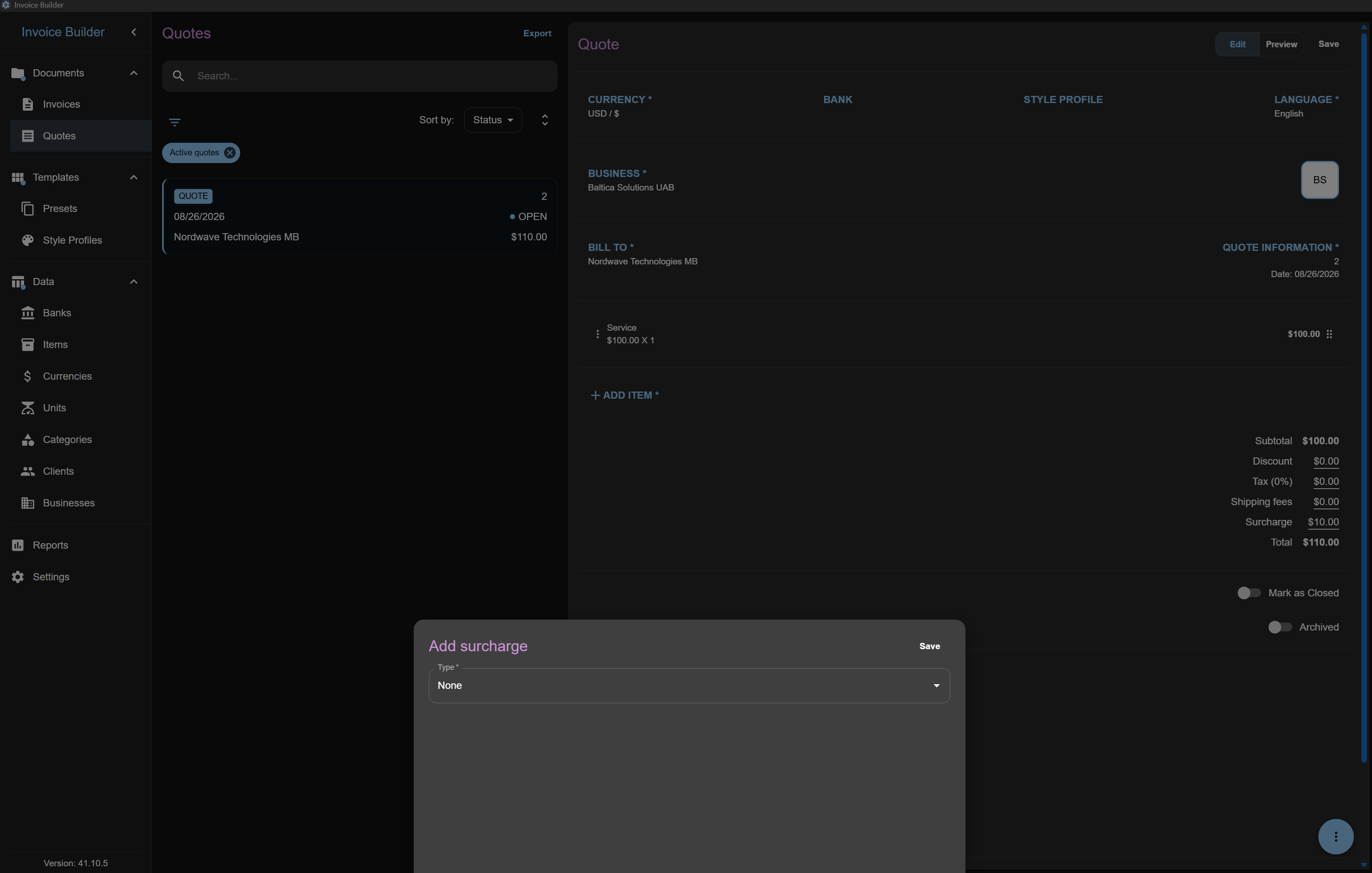
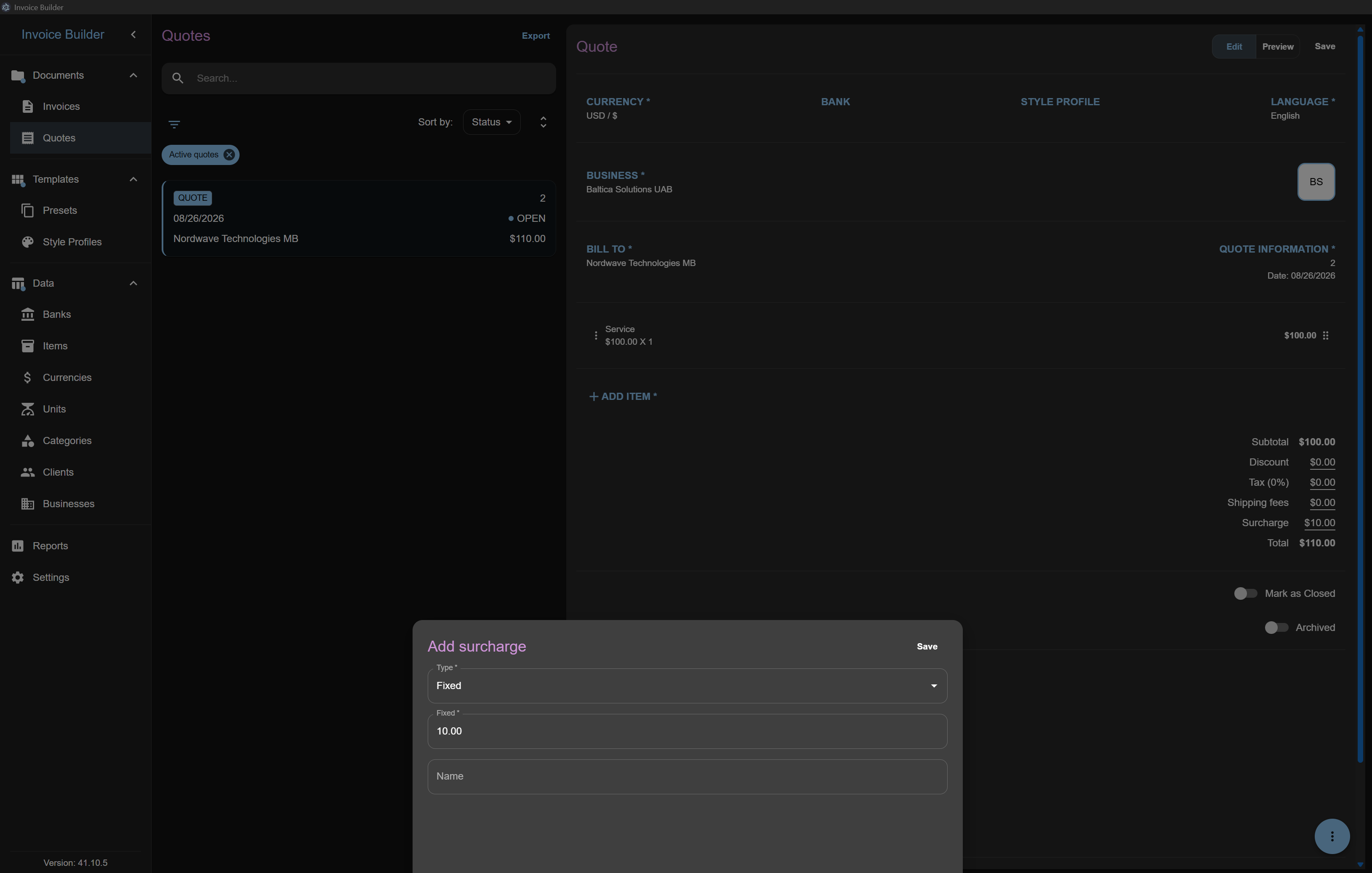
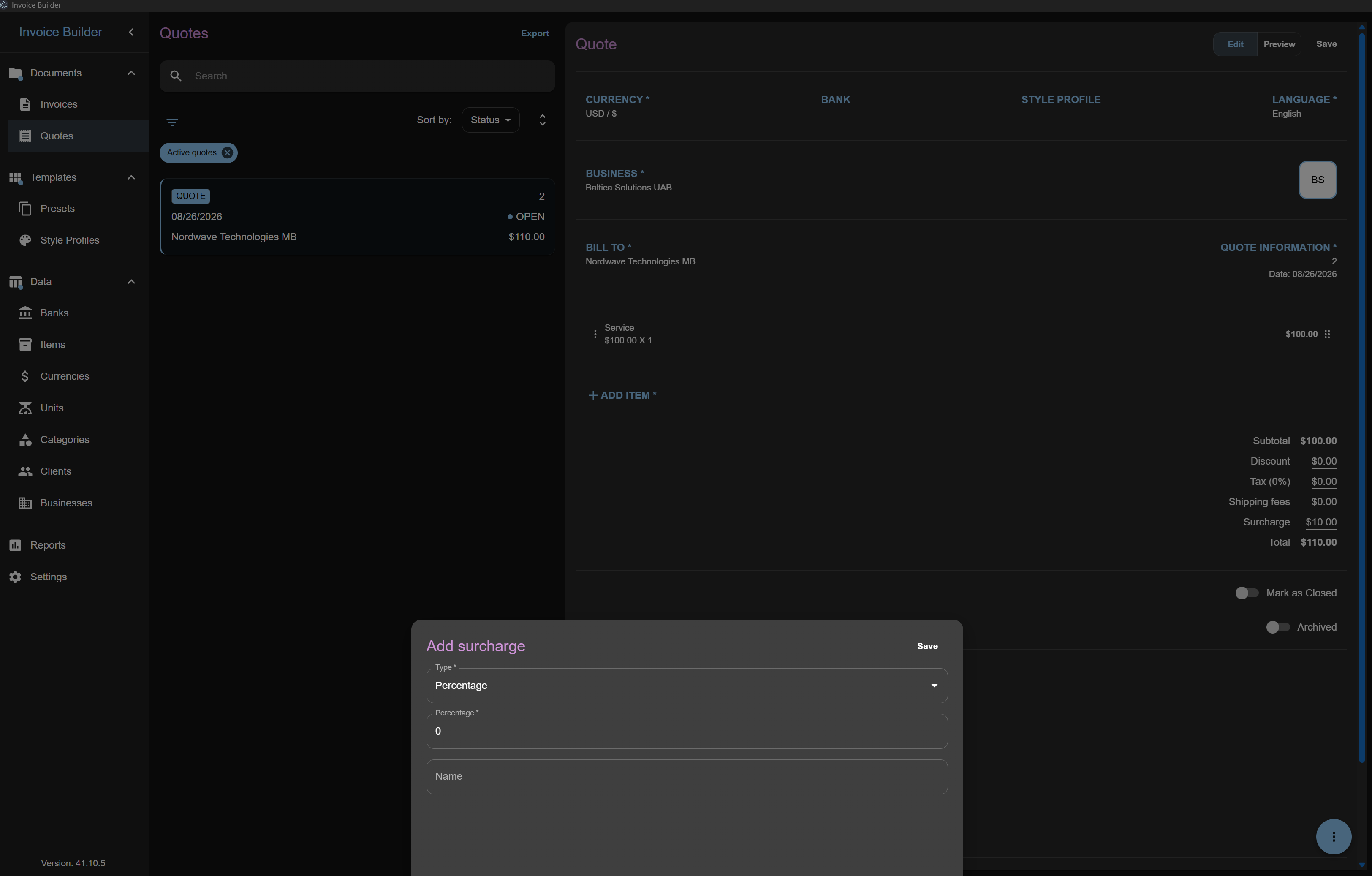
Additionally, you can set a surcharge (fixed amount or percentage-based).
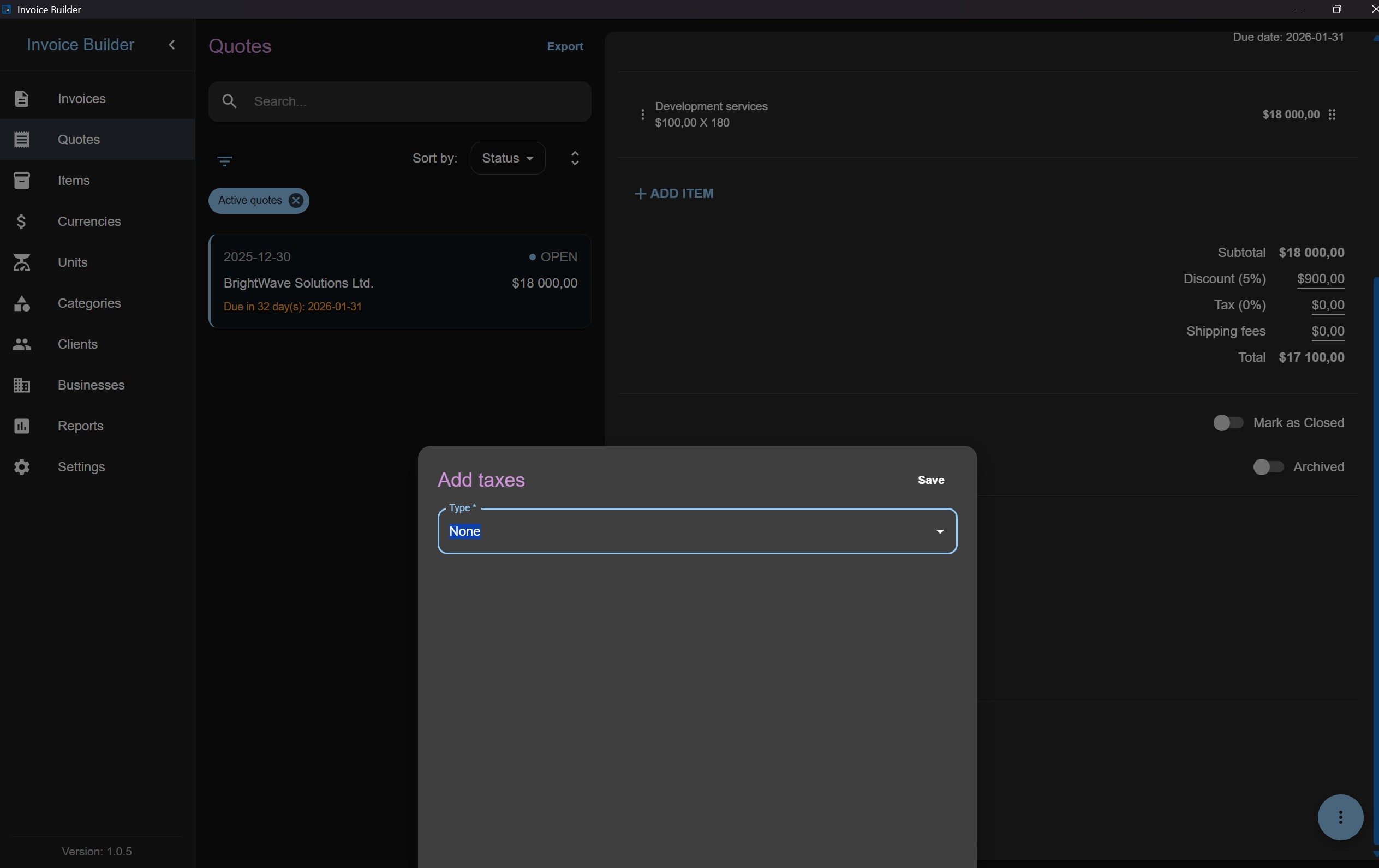
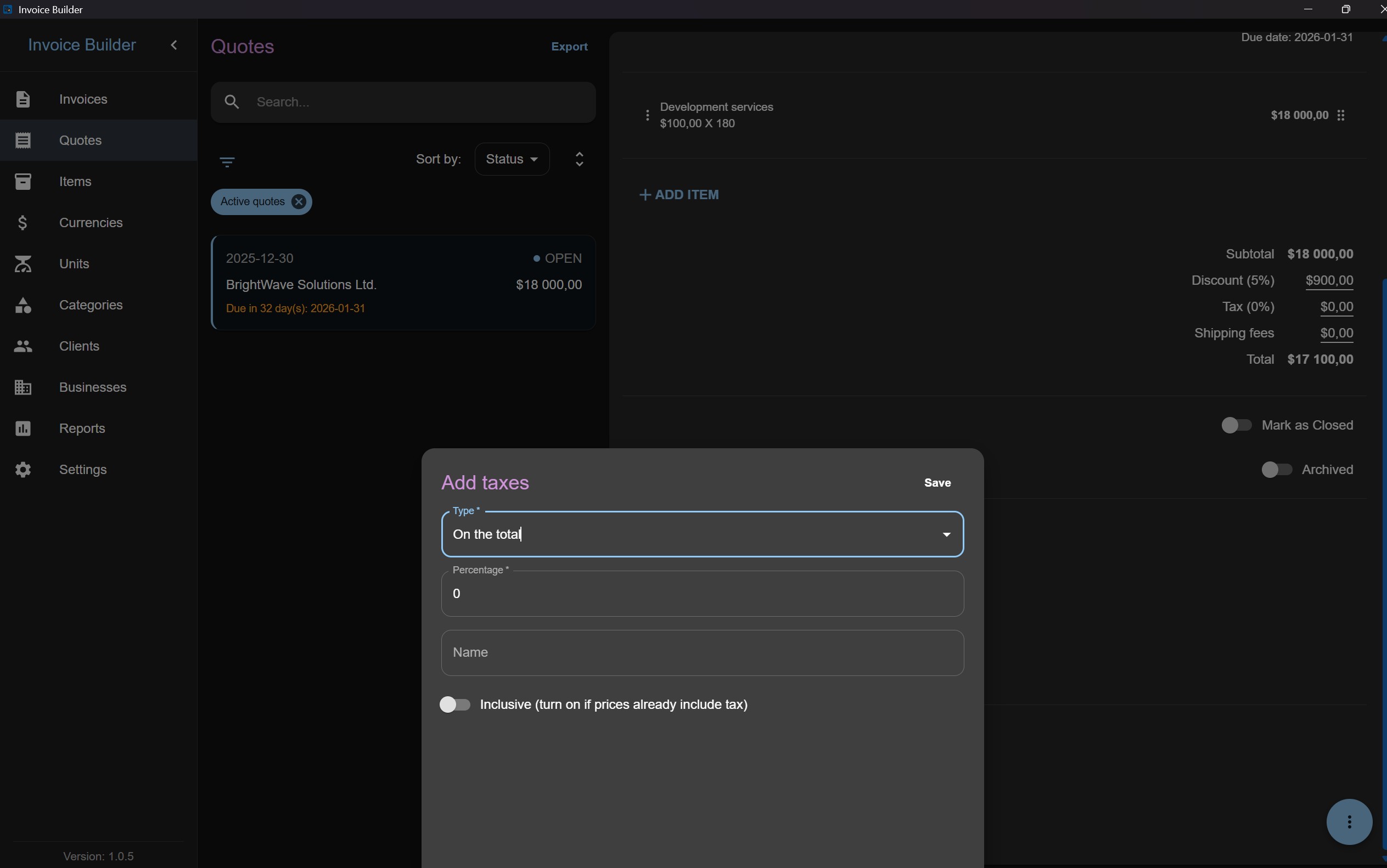
You can also configure taxes for the quote:
- Total-based taxes: inclusive, exclusive, or deducted
- Per-item taxes: inclusive or exclusive
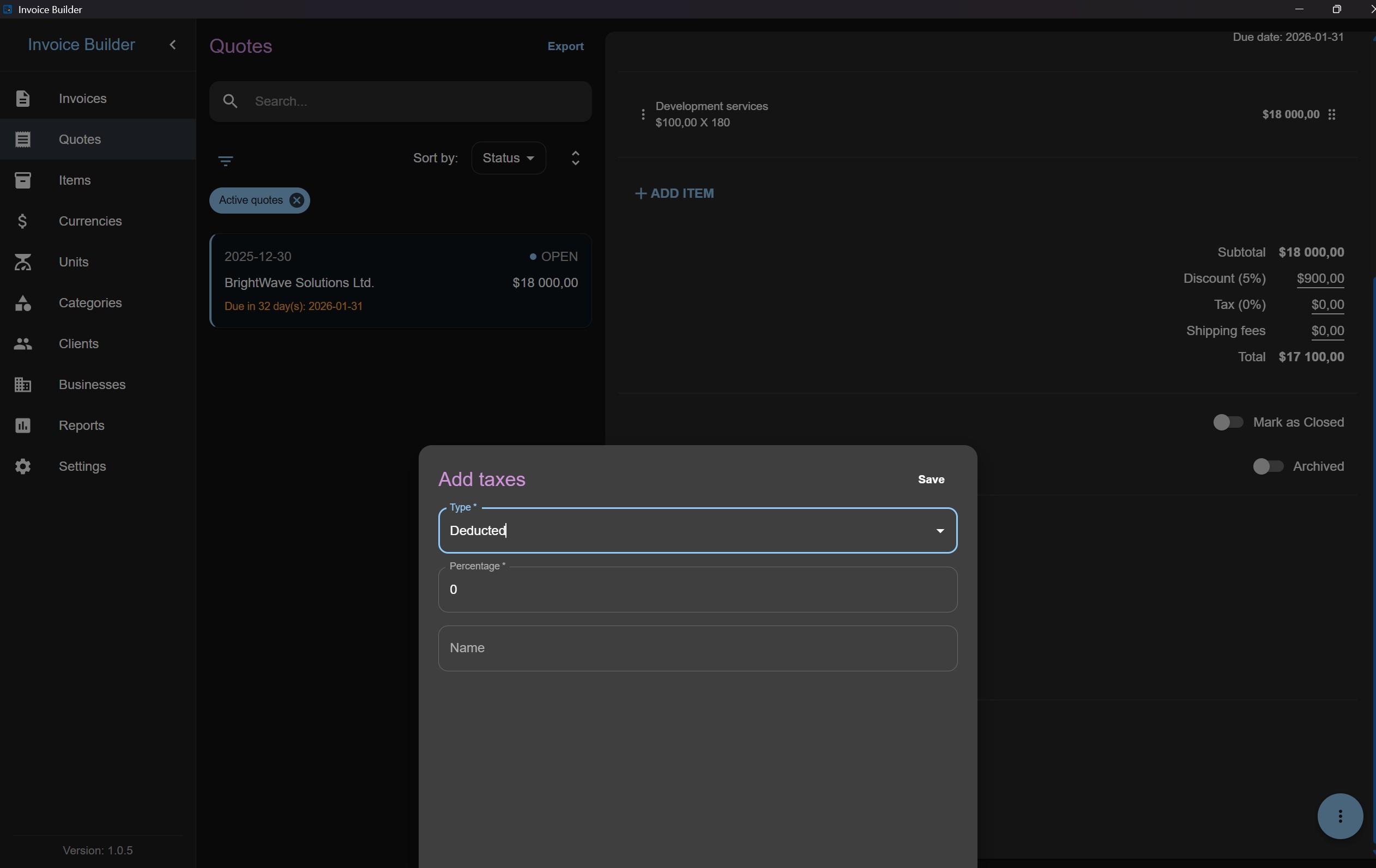
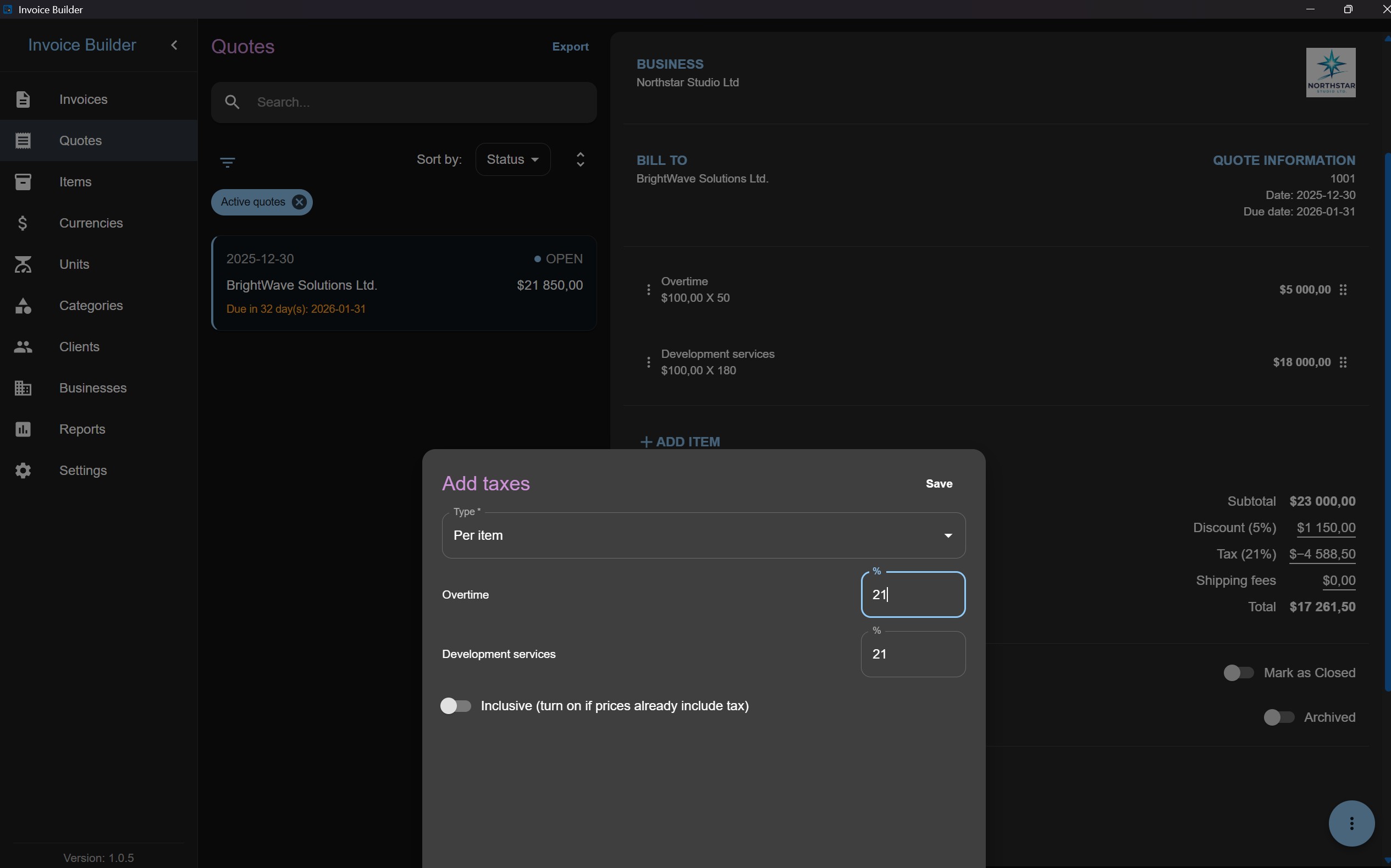
Results:
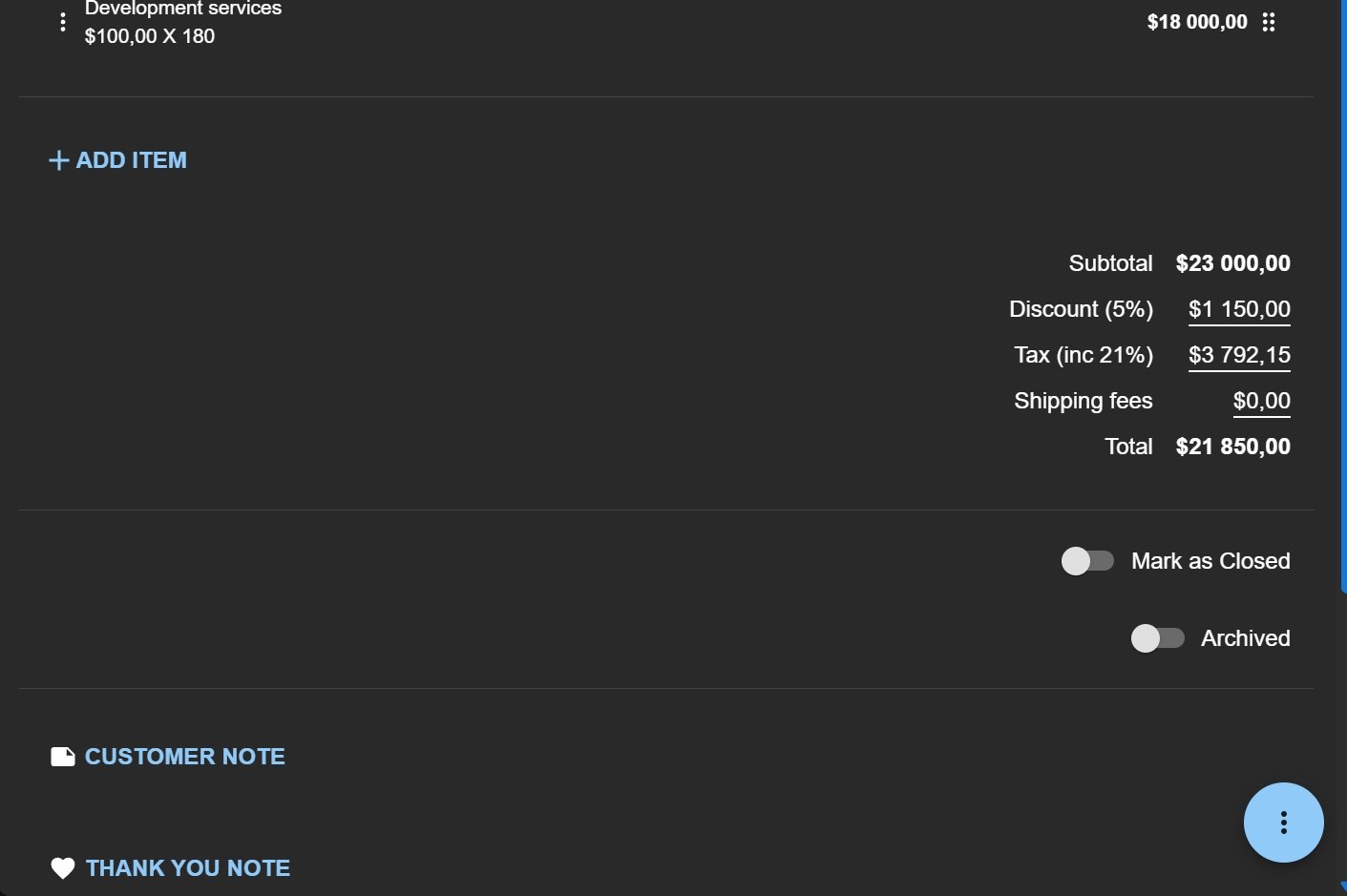
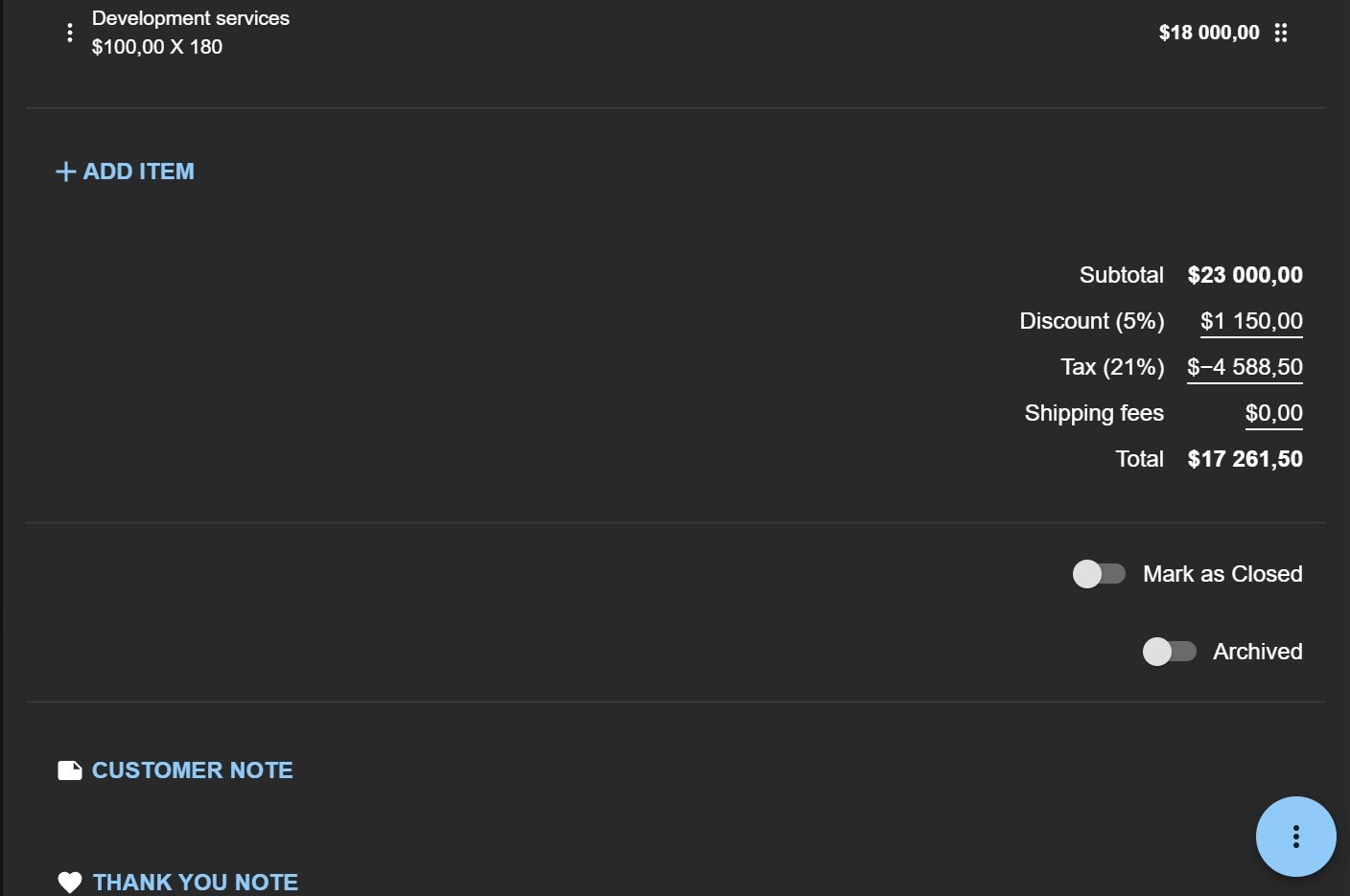
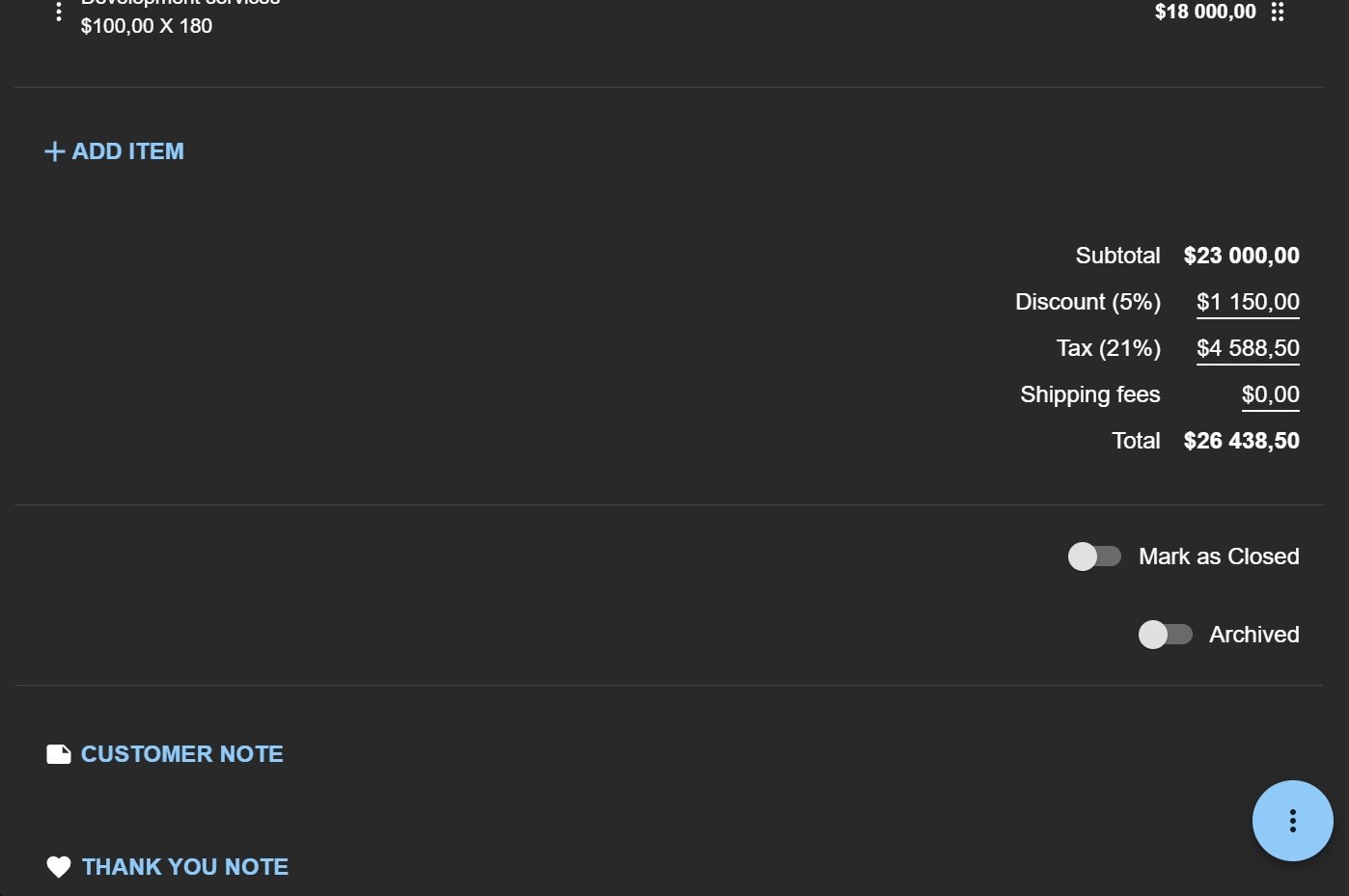
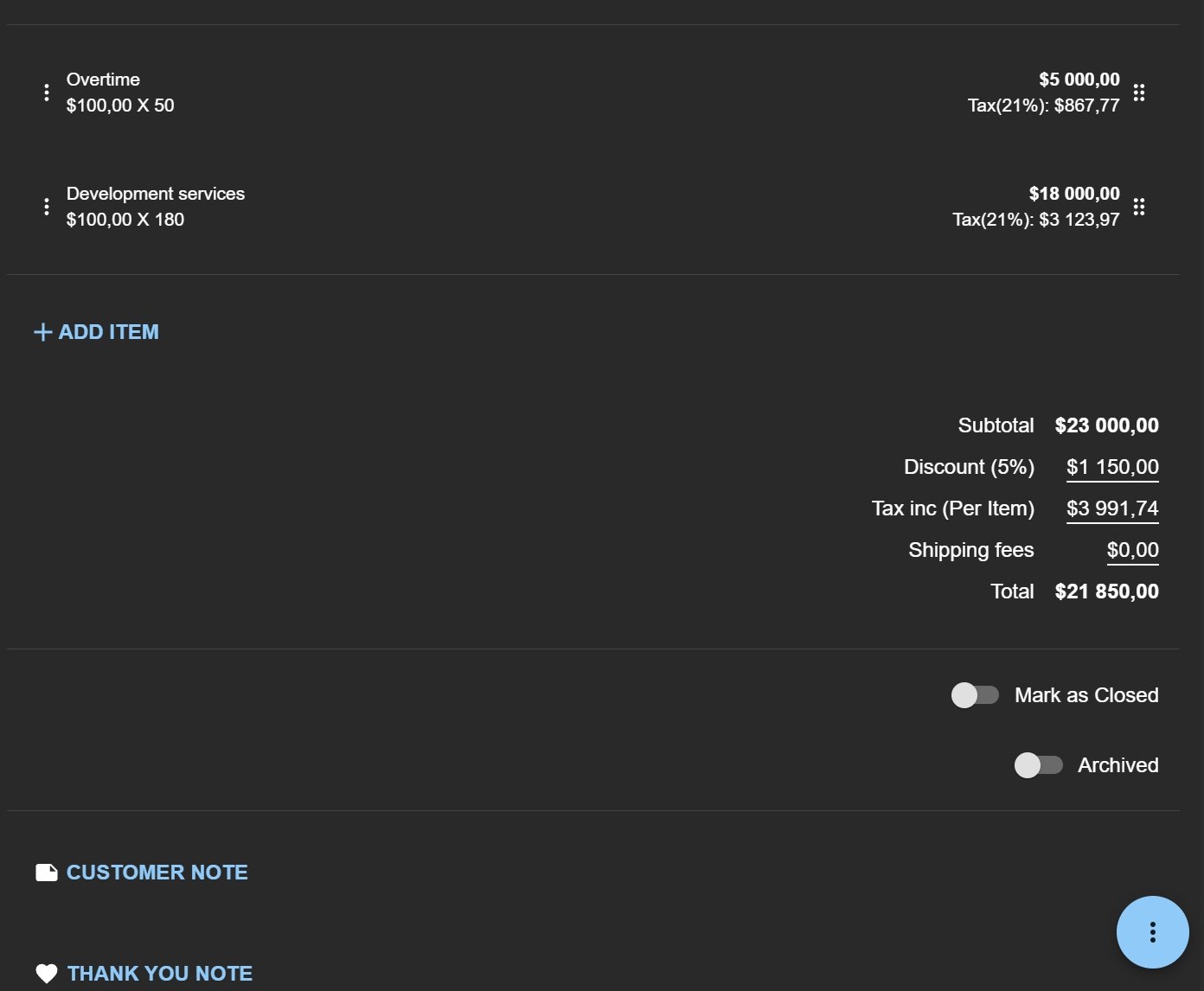
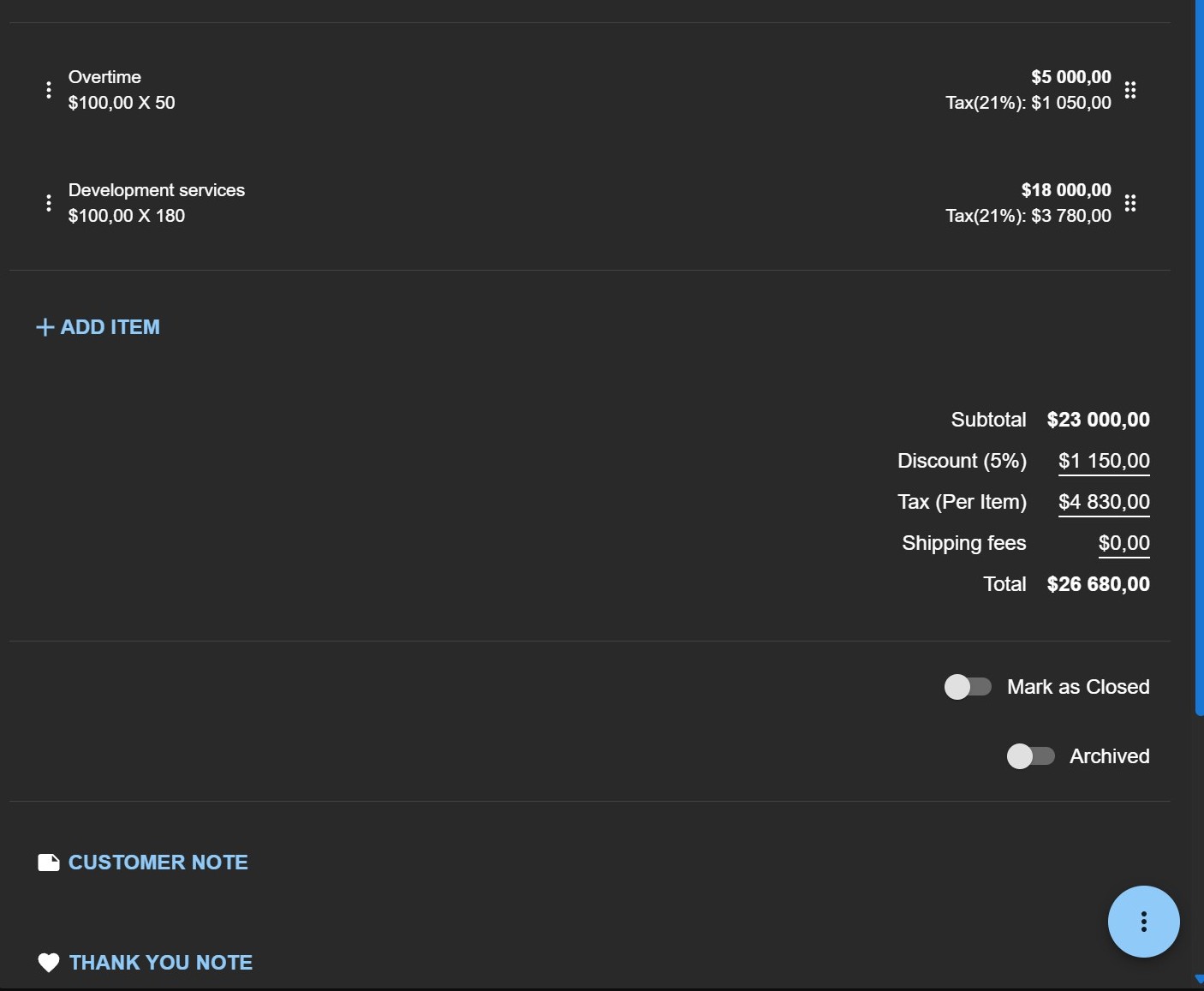
Additionally, you can set a shipping fees (fixed amount).
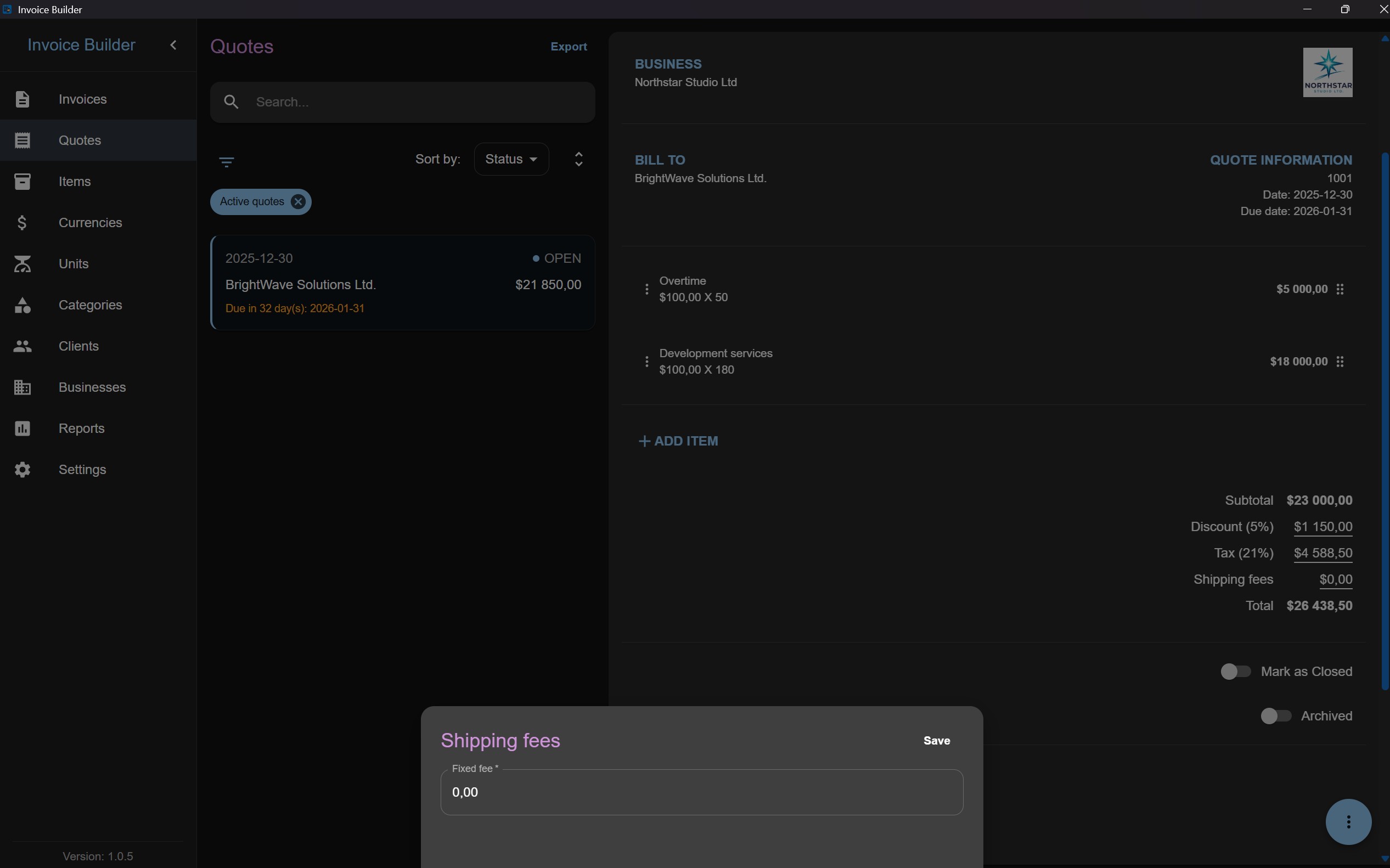
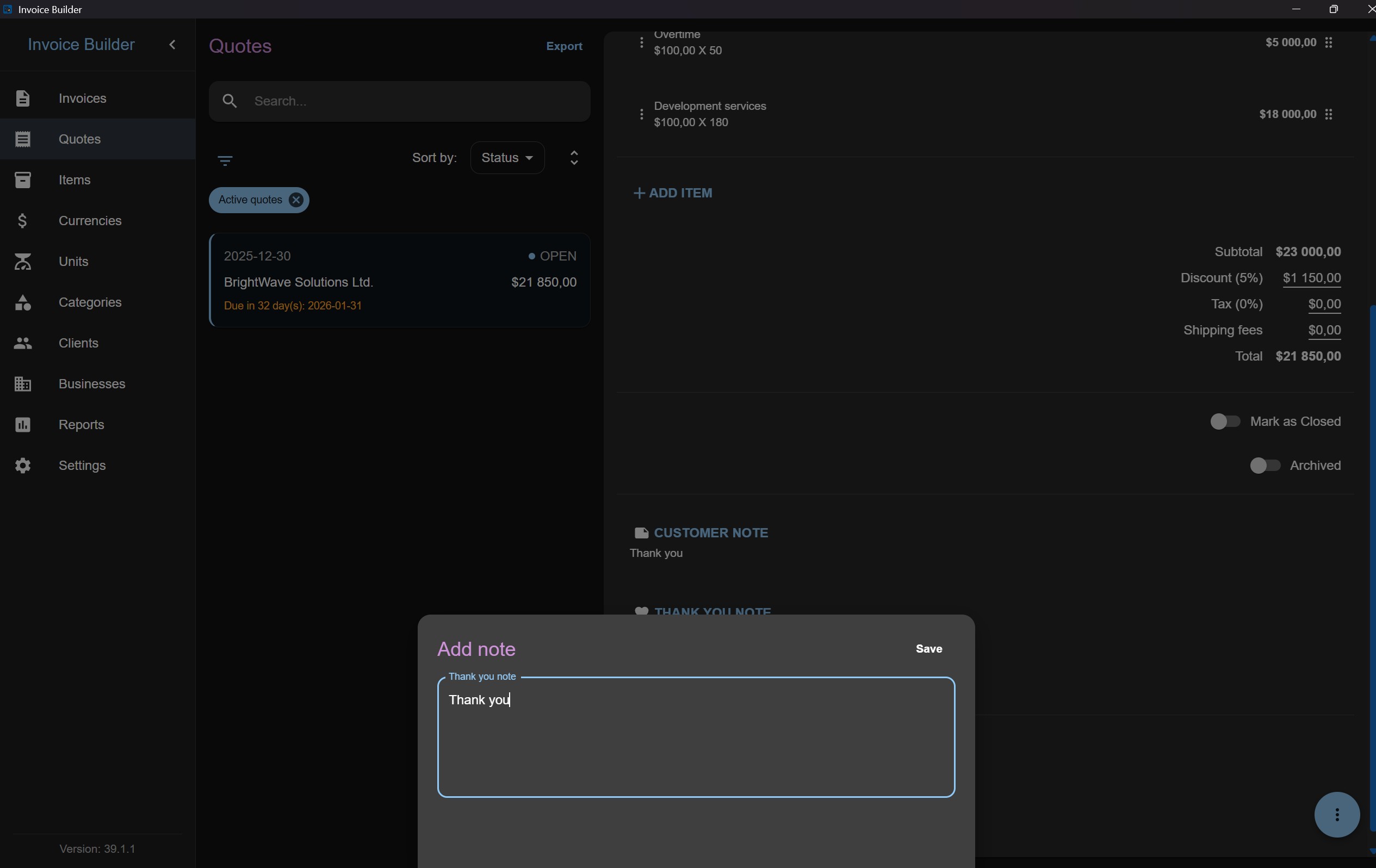
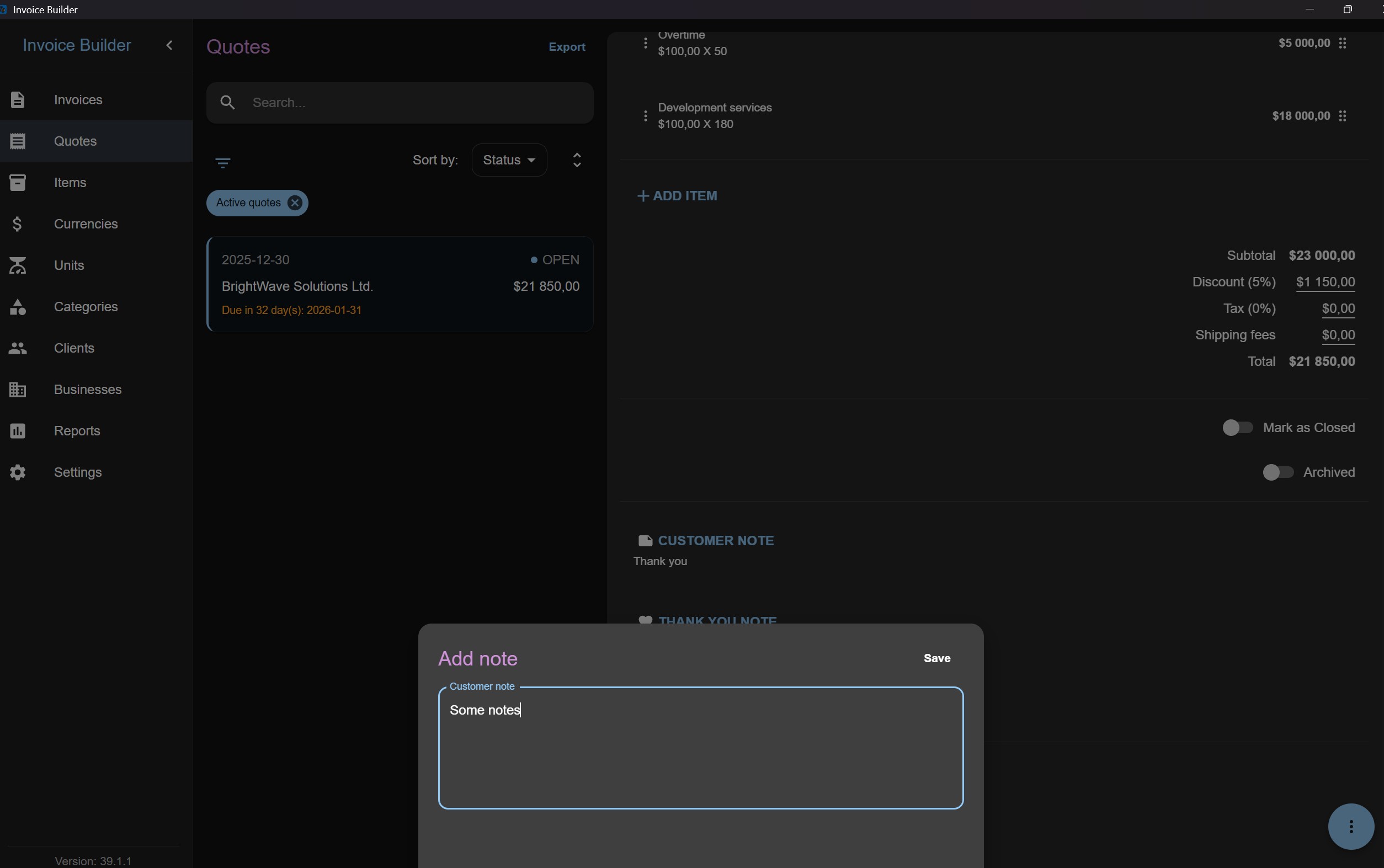
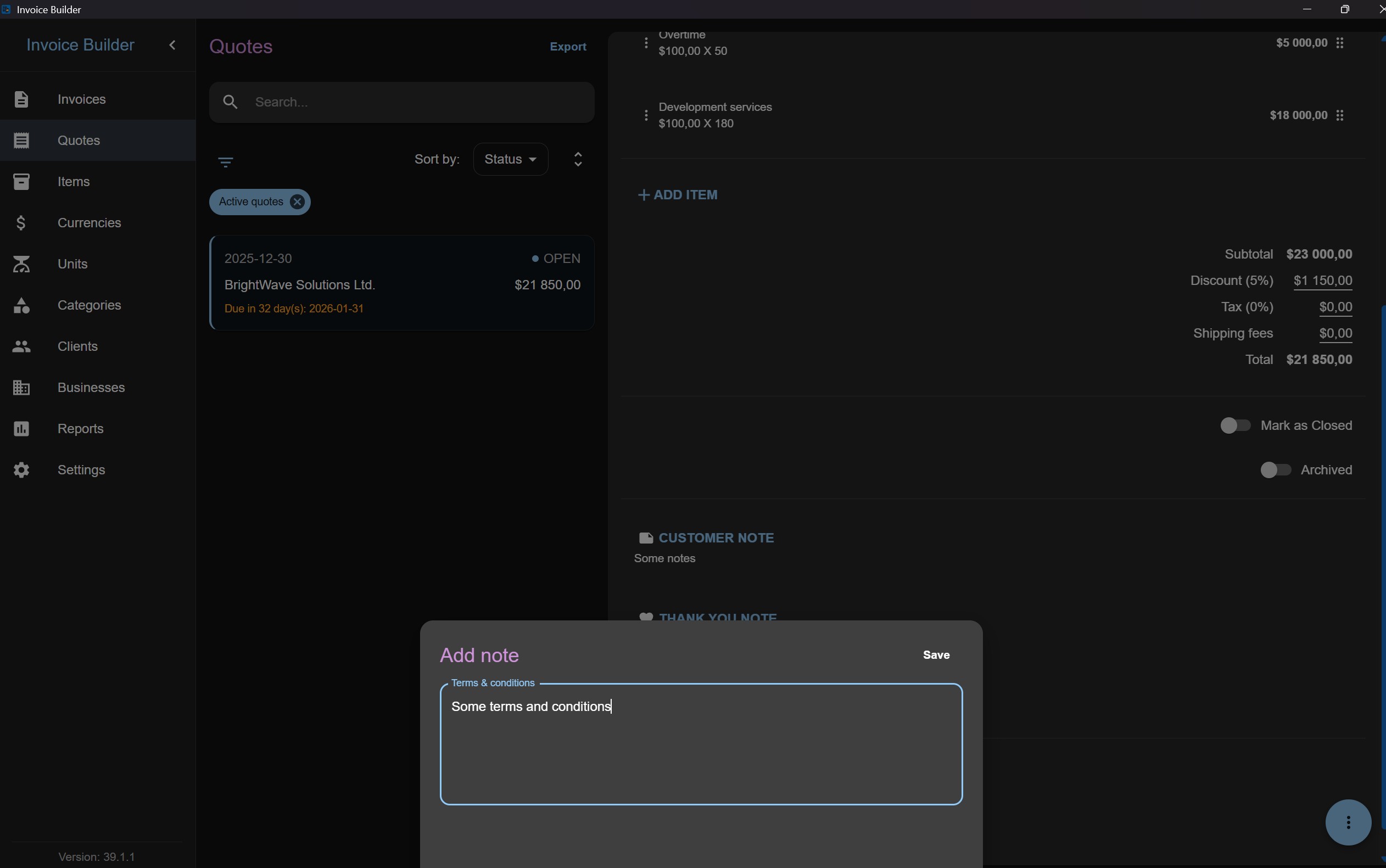
Additionally, you can set a notes (customer notes, thank you note, terms & conditions note).
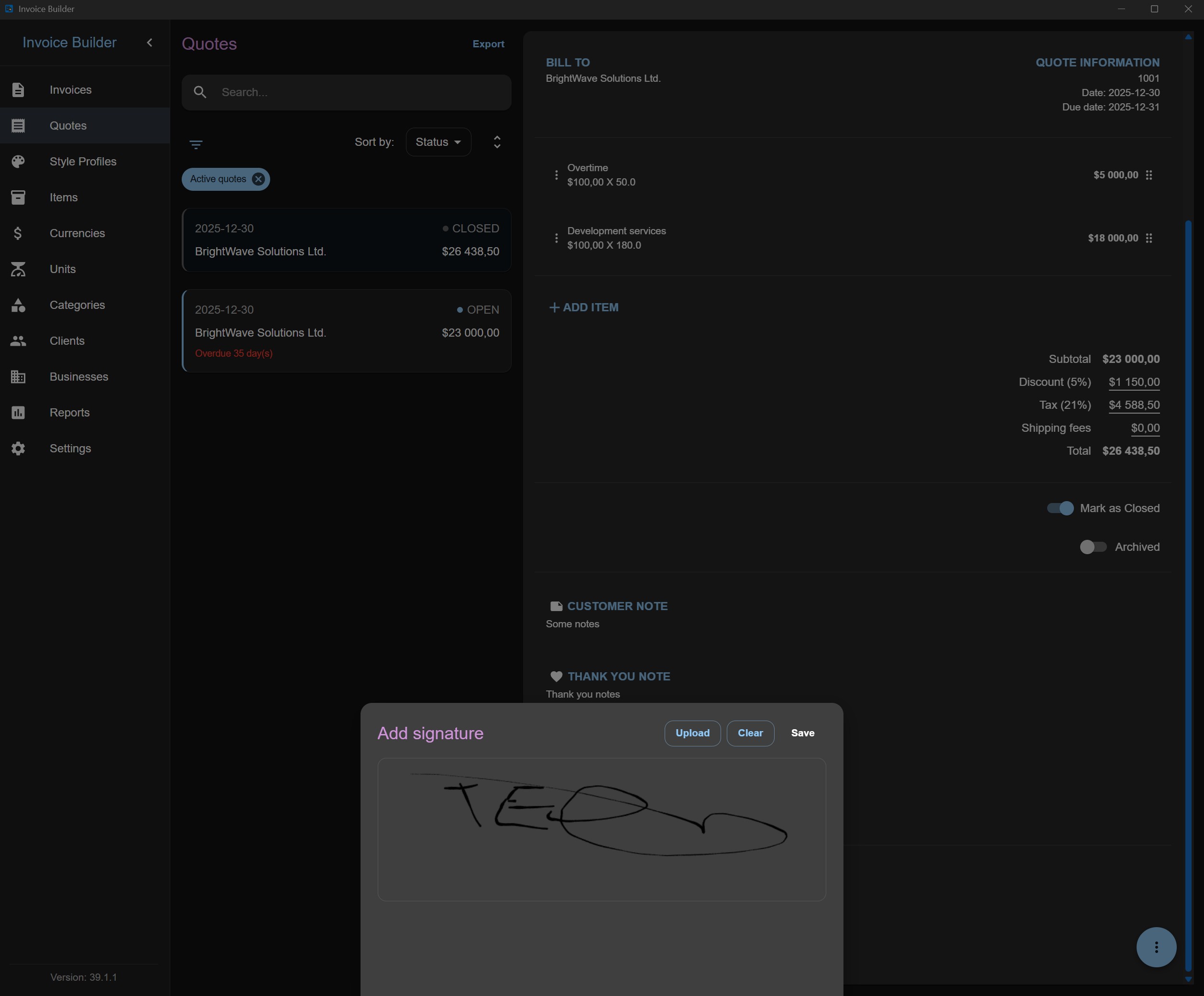
Additionally, you can set a signature which can be set via hand/cursor or uploaded as image.
Maximum file size: 2 MB
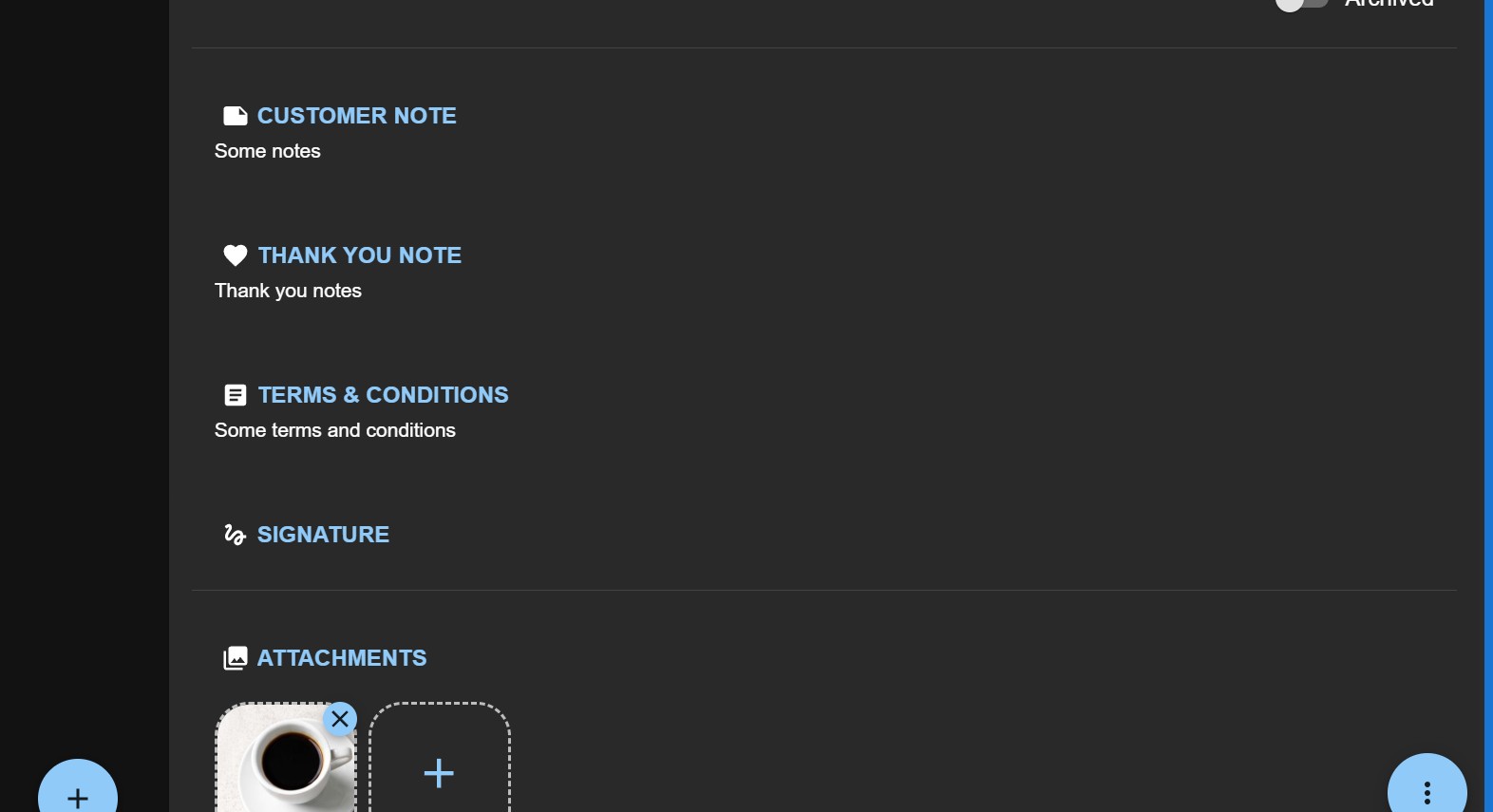
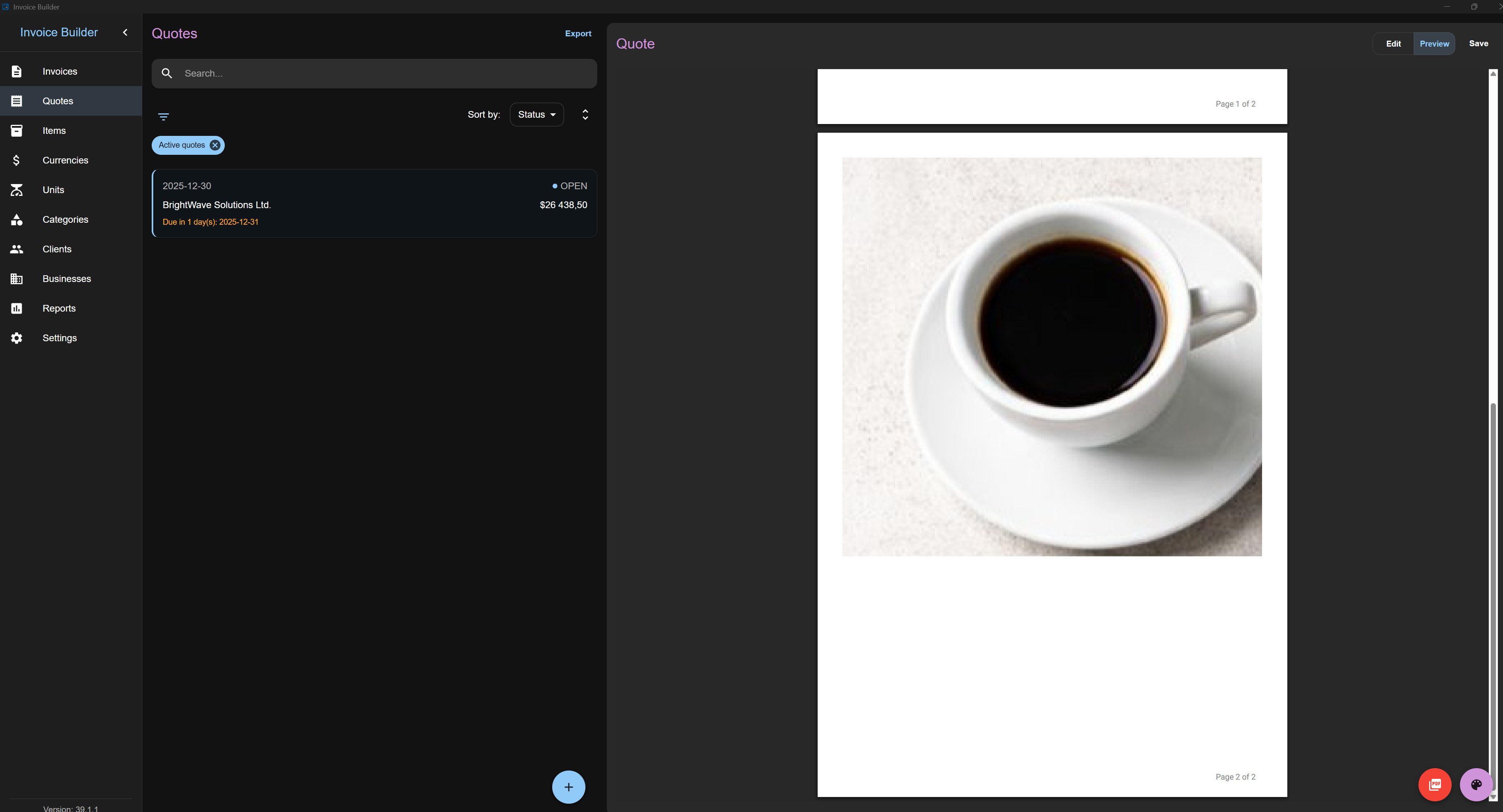
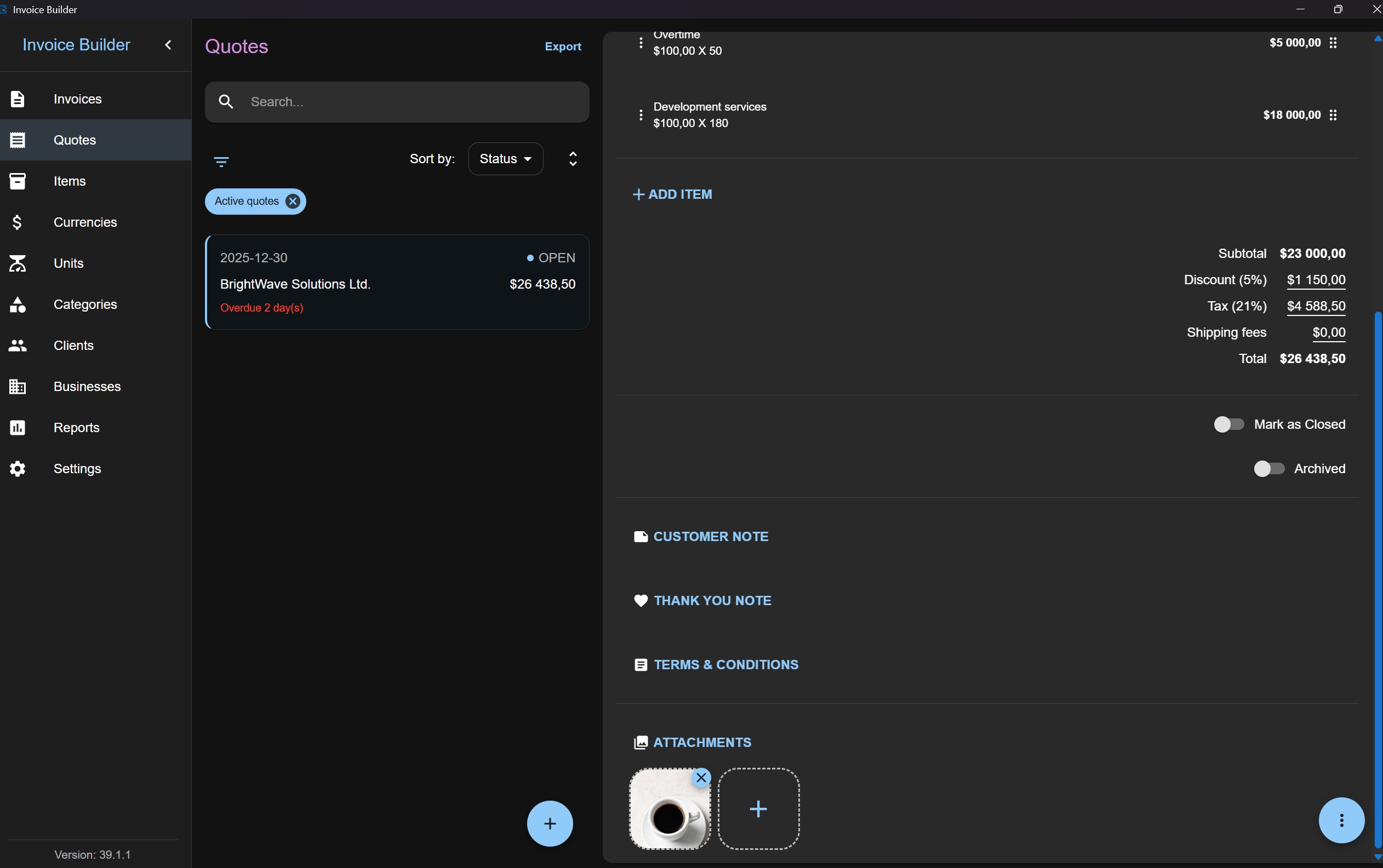
Additionally, you can attach images, which will be embedded into the PDF.
Maximum file size: 2 MB
Editing / Deleting a Quote
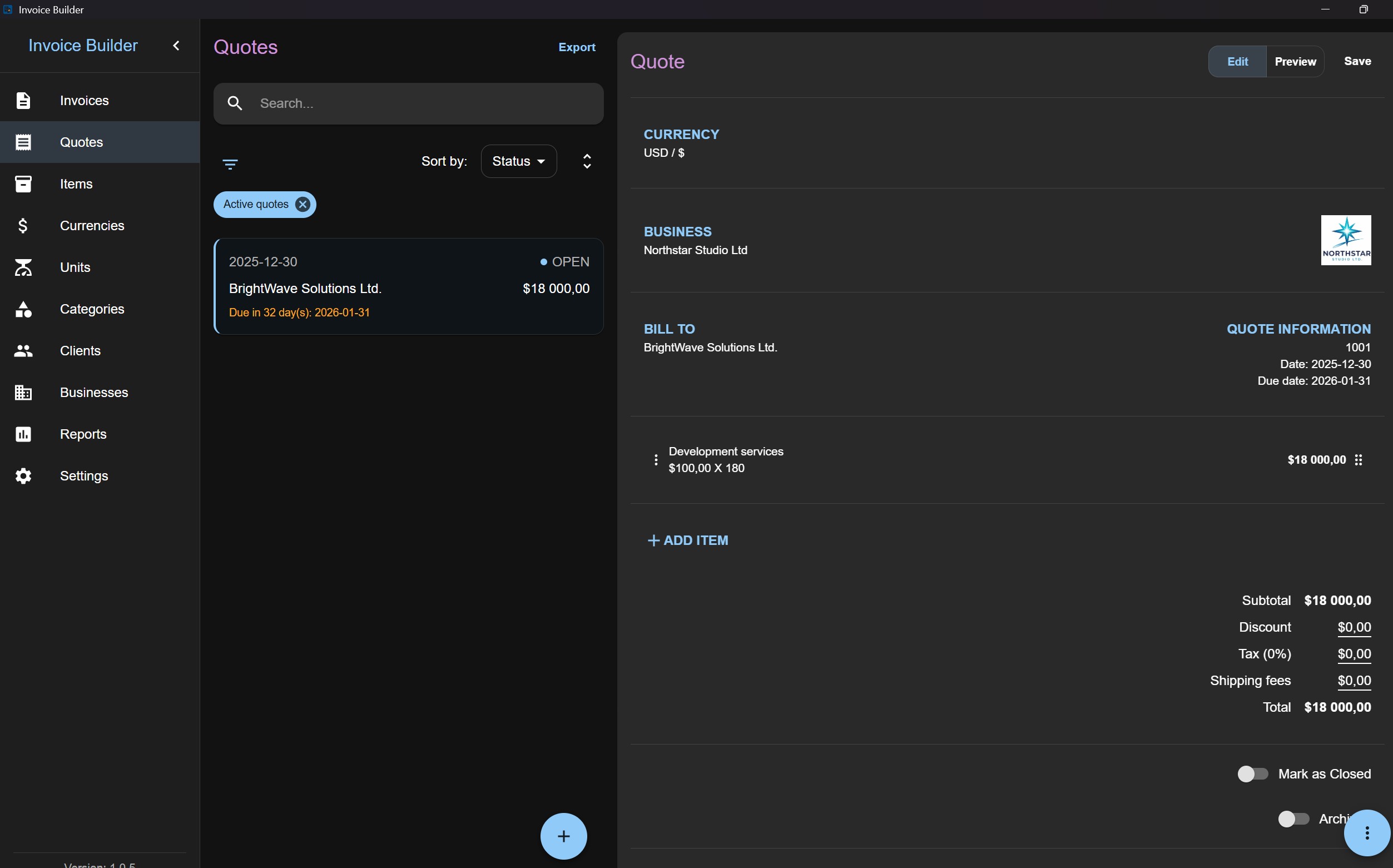
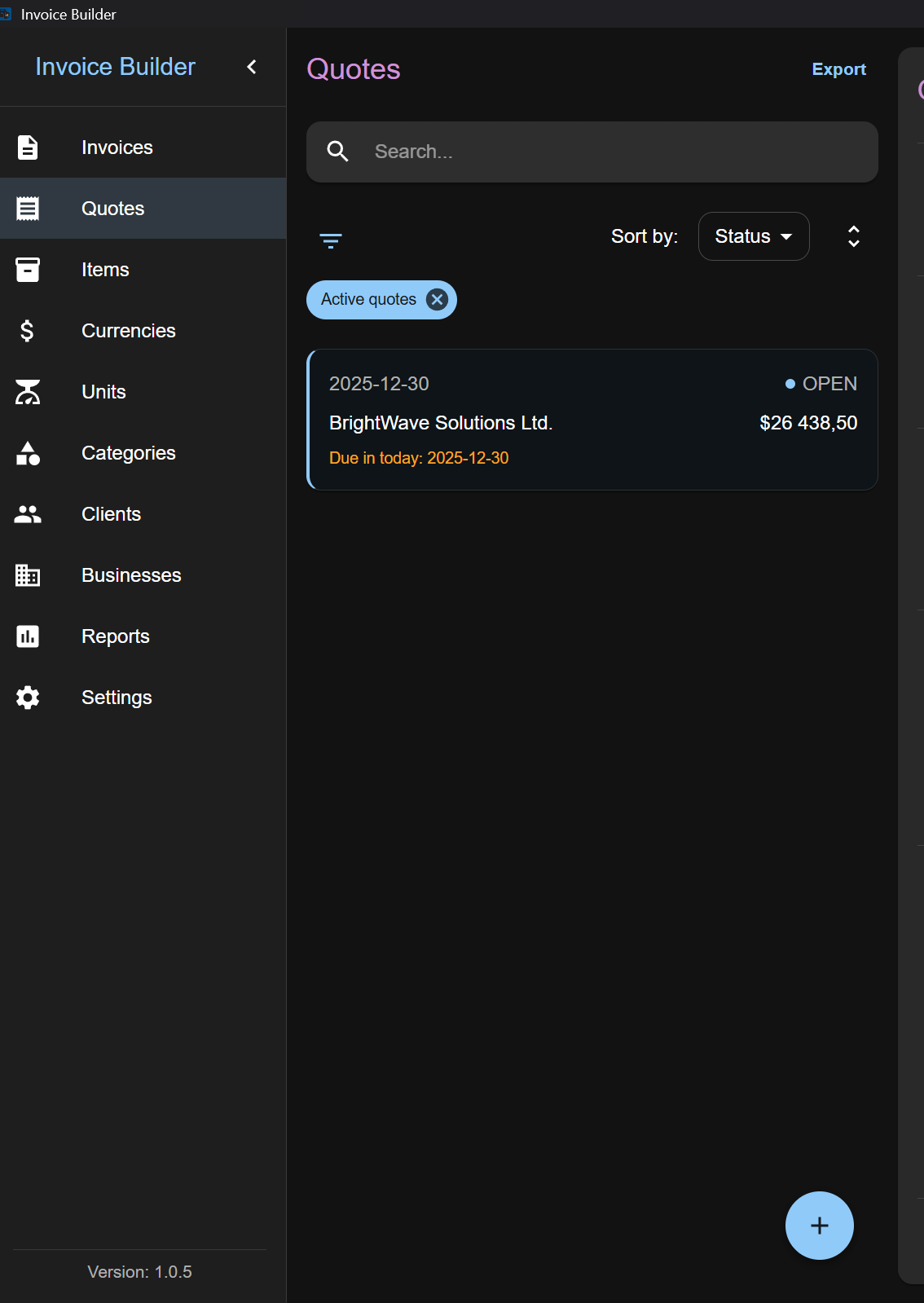
Once quotes are added, select one from the list to edit it on the right-hand pane. Each quote also displays:
- Quote data (Issued At)
- Quote status (Open, Closed)
- Client name
- Total amount
- Due date / Overdue information
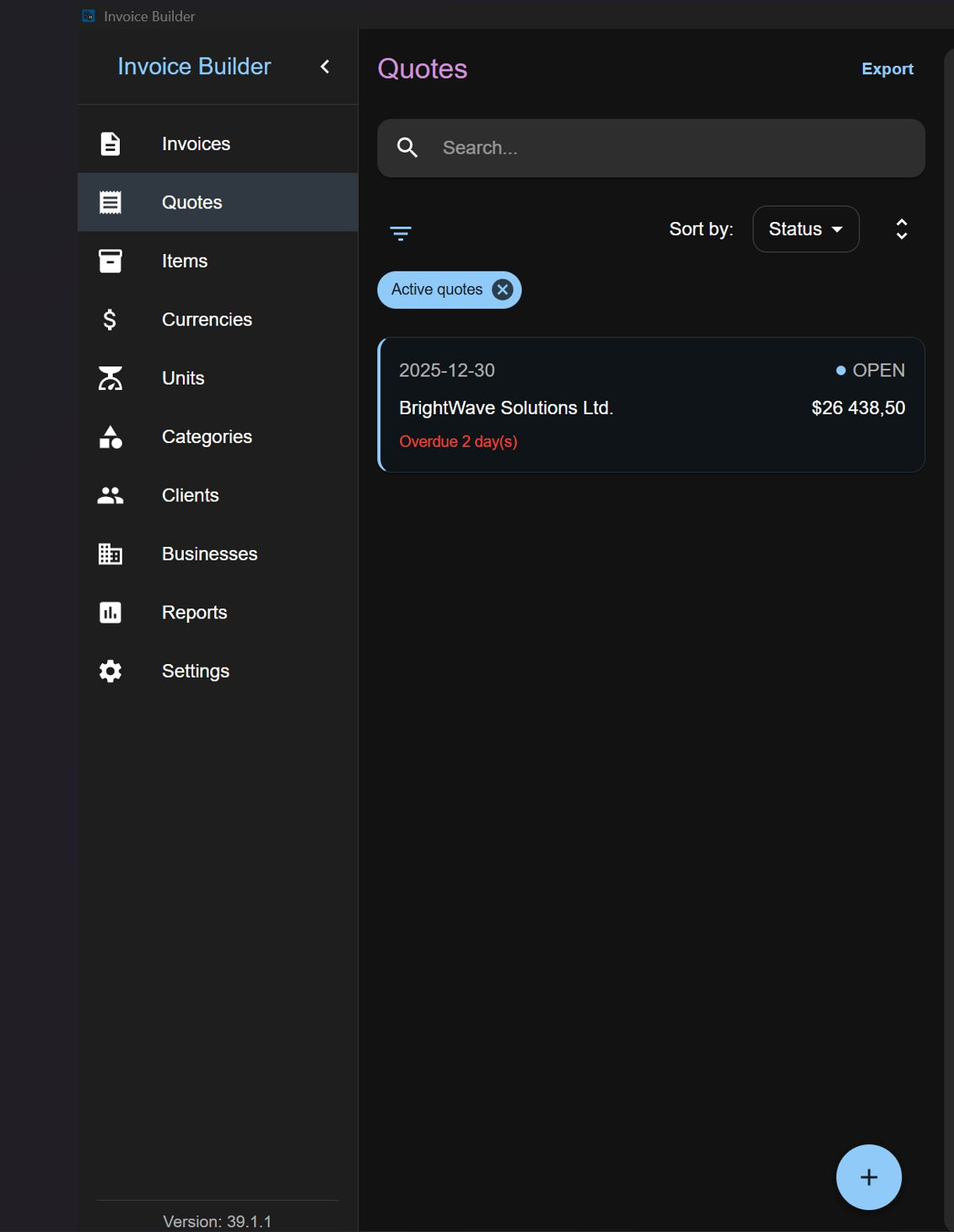
You can also:
- Search quotes by quote number
- Delete a quote by clicking the vertical dots menu → Delete
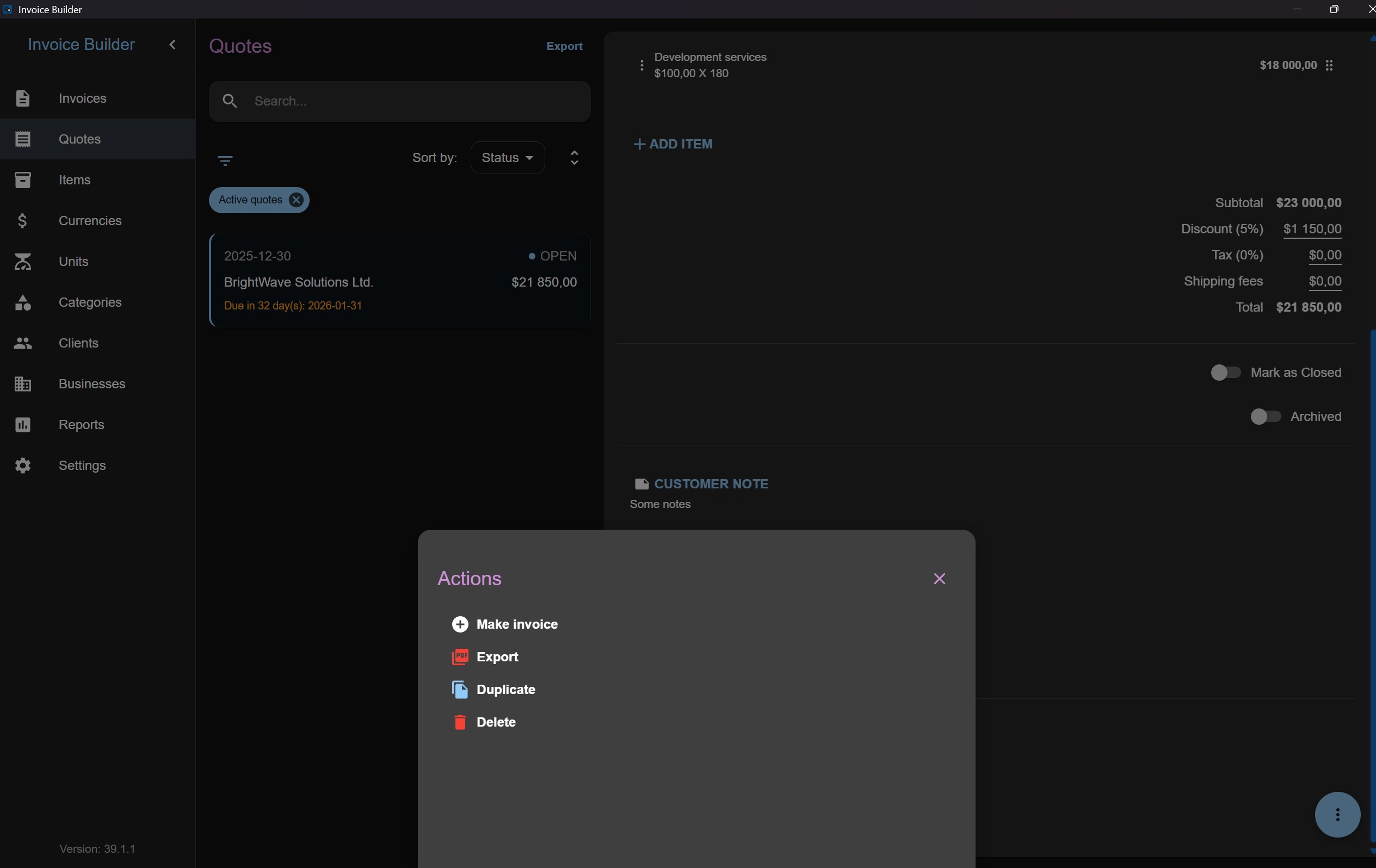
Filters
Quotes have filters to control what is displayed. By default:
- Active: shows all items except archived
The archived flag can be toggled during creation or editing. This flag only affects filtering and does not delete the quote.
Quotes have only Open and Closed statuses, so the status filter includes only these options.
Client and business filters are based on snapshot data stored with the quote.
The date filter applies to the Issued At date.
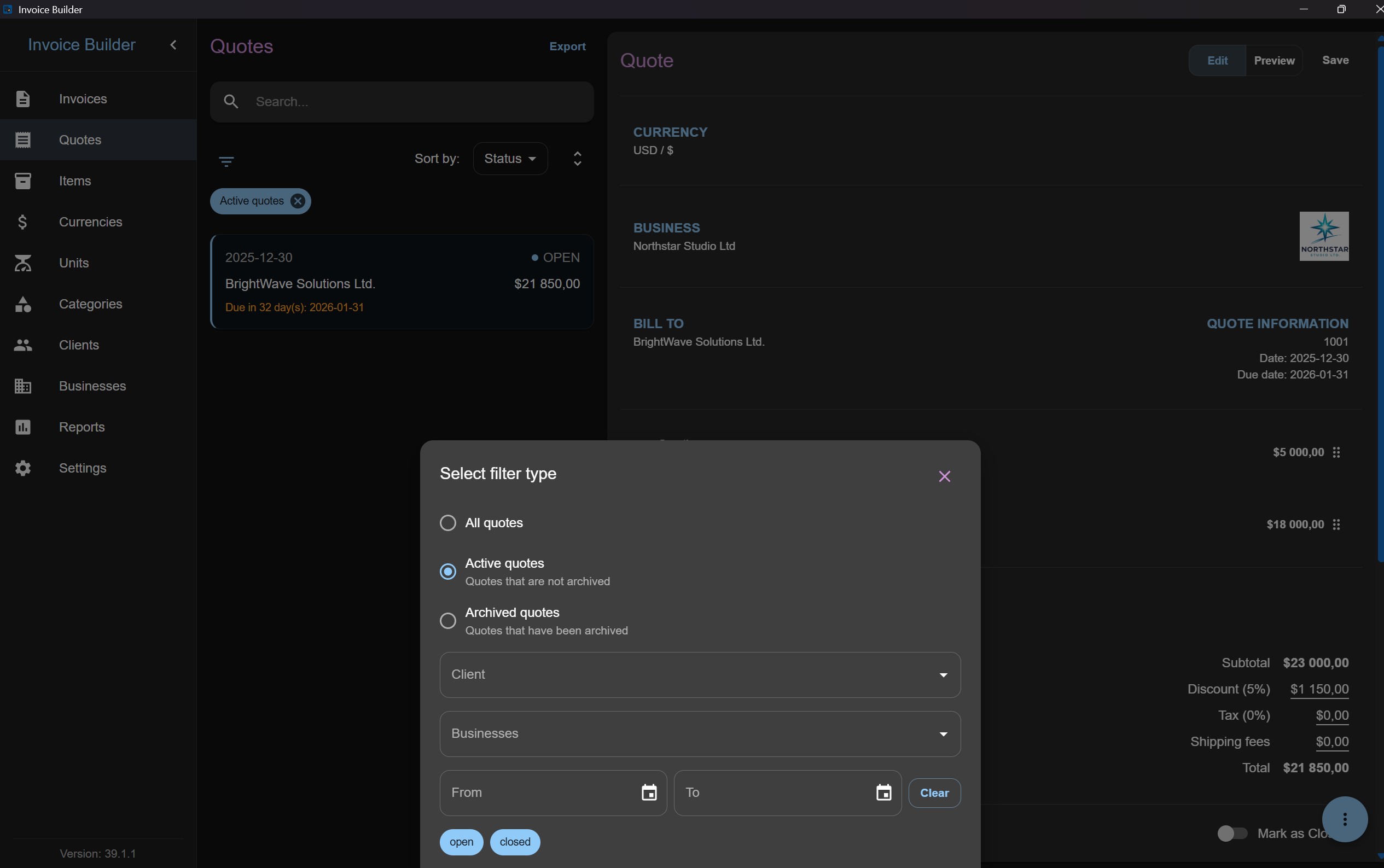
Sorting
Quotes can be sorted by:
- Status
- Issued at date
- Quote number
- Last updated date
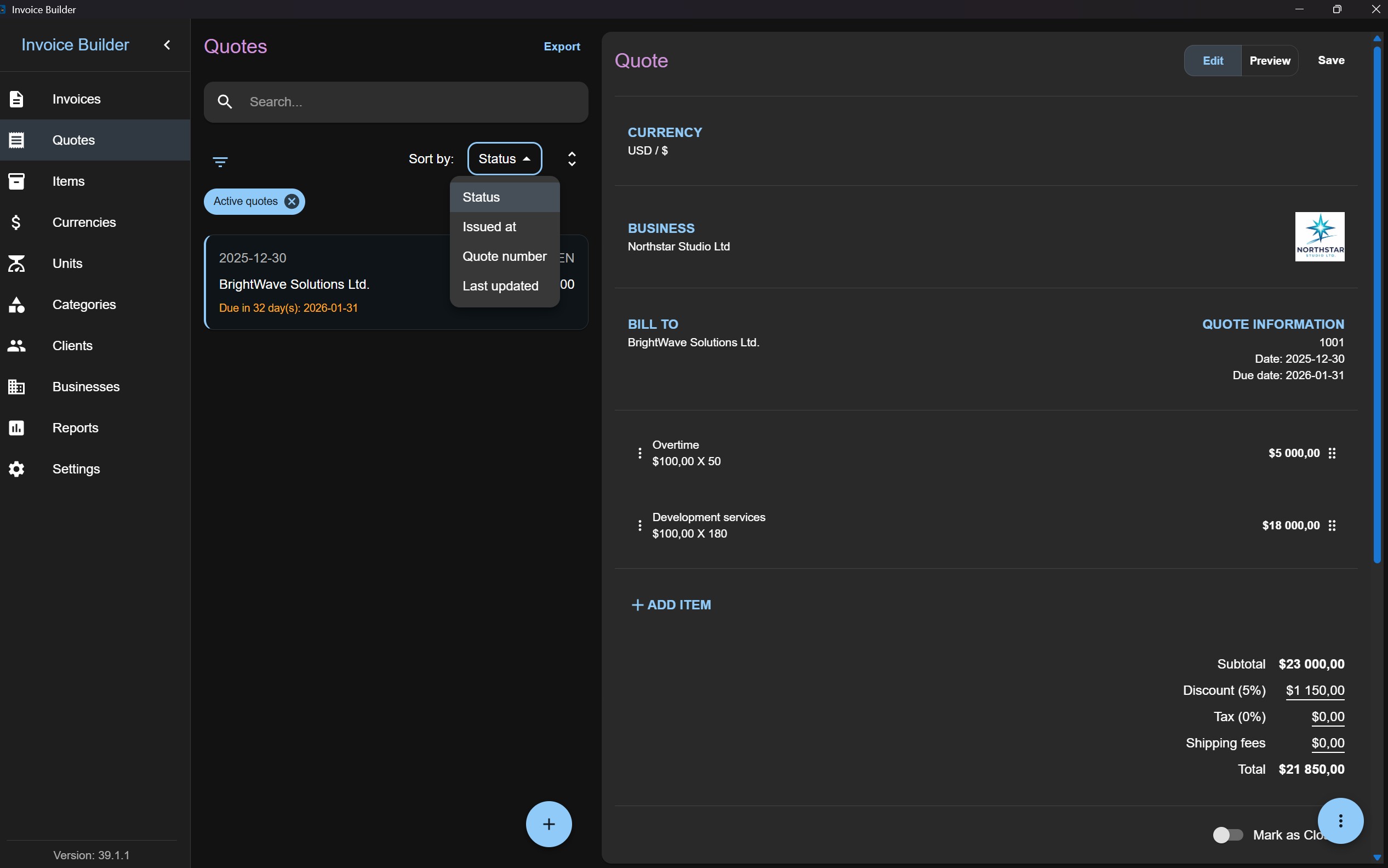
Export
Quotes can be exported only to XLSX format.
- Export all quote-related data to XLSX
Attachments and business logo snapshots are not included in the export.
PDF Preview
- Quotes can be previewed live and exported as PDF.
- PDF customization is based on predefined configuration options.
- The Paid watermark is applied only when the status is set to Paid.
- The watermark is applied across all pages of the document.
- Page numbers are shown only when the document has more than one page.
- Attachments are embedded into the PDF when present.
- Sections with zero values (Surcharge, Discount, Tax, Shipping fees) are hidden in the PDF.
- Save as Profile button will create style profile item with these customization presets for futher usage on other quotes.