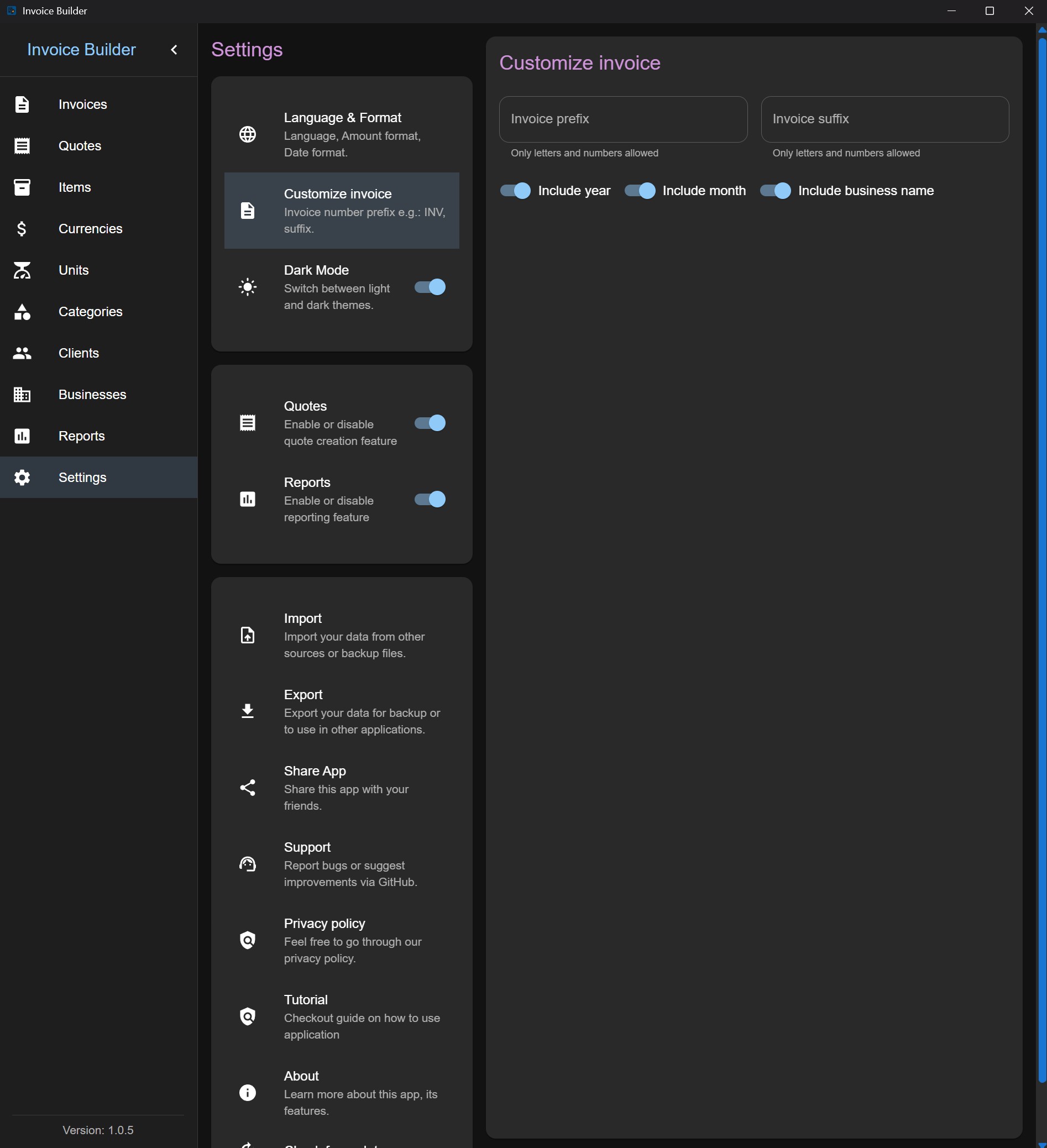
Settings screen
The Settings screen allows you to configure application behavior, manage data, and customize document output.
General & Data Management
From this screen you can:
- Enable or disable optional features (Presets, Style profiles, Quotes and Reports)
- Enable or disable optional features (UBL 2.1, XRechnung, Receipt Printing)
- Export all application data to JSON
- Import previously exported data
- Access project resources:
- GitHub repository
- Issue tracker
- Tutorial
- Project homepage
- Privacy Policy
- Terms of Use
- Check for application updates via GitHub Releases (Available only for native software version)
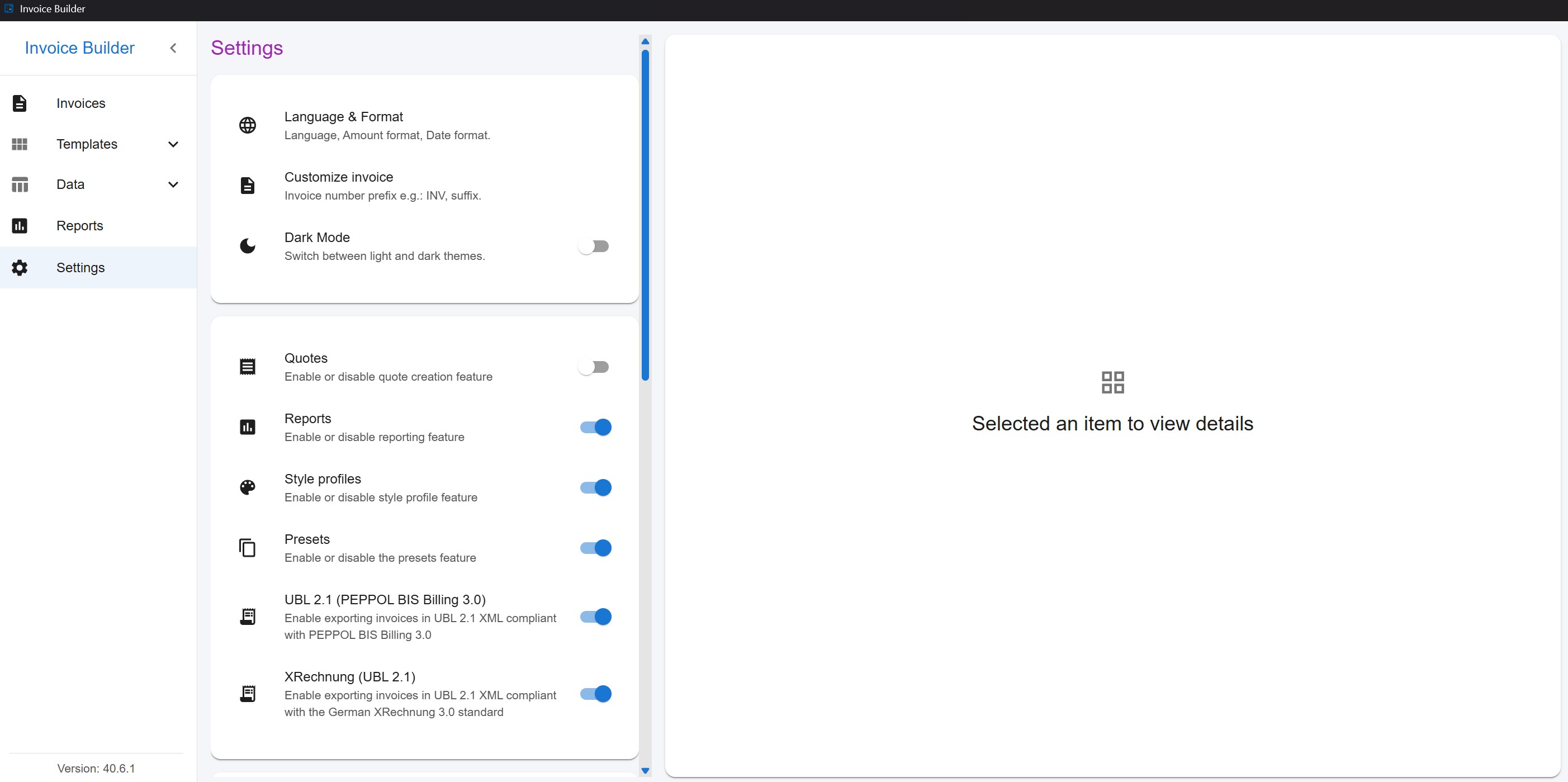
Localization & Formatting
You can customize:
- Application language
- Number (amount) formatting
- Date formatting
Receipt printing
Receipt printing produces a compact 80mm receipt layout for invoices, designed for retail checkout and POS-style workflows. It is available in both the desktop Electron app and the web/Docker version, but the two work differently:
| Mode | How it works | Output |
|---|---|---|
| Desktop (Electron) | Uses the operating system's native print dialog. A compatible printer must be installed and selected before printing. | Physical printout (e.g. on an 80mm thermal receipt printer), no browser chrome, no header/footer. |
| Web / Docker | Opens the receipt in a new browser tab and triggers the browser's own print dialog. | Any destination the browser offers, including "Save as PDF" to get a receipt PDF, since there is no OS-level print API available to a web page. |
In web/Docker mode, the browser's print dialog may add its own header/footer (page URL, date, page count). This is a browser preference, not something the app can turn off by default - uncheck "Headers and footers" under More settings in the print dialog for a cleaner printout; the browser remembers this choice for future prints.
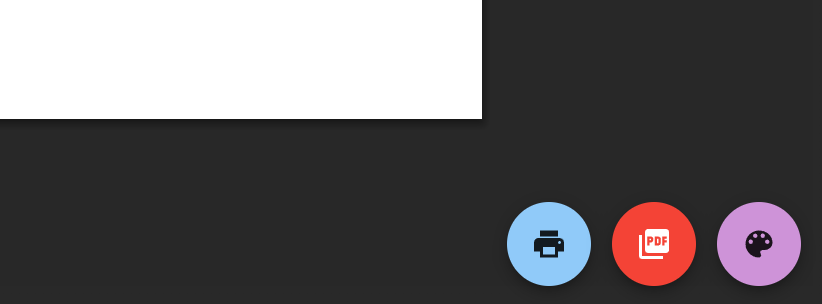
Invoice & File Naming
The following options are available:
- Customize invoice and quote numbers using:
- Prefix
- Suffix
- Customize exported PDF file names
When a numeric invoice number uses leading zeros (for example, 000005), the next auto-generated number keeps the same width (000006, 000007, ...), expanding only when required (for example, 999999 -> 1000000).
By default, files are named: "{Invoice|Quote}_{InvoiceNumber}.pdf"
You can optionally include:
- Year
- Month
- Business name